Why Compress PDF Files?
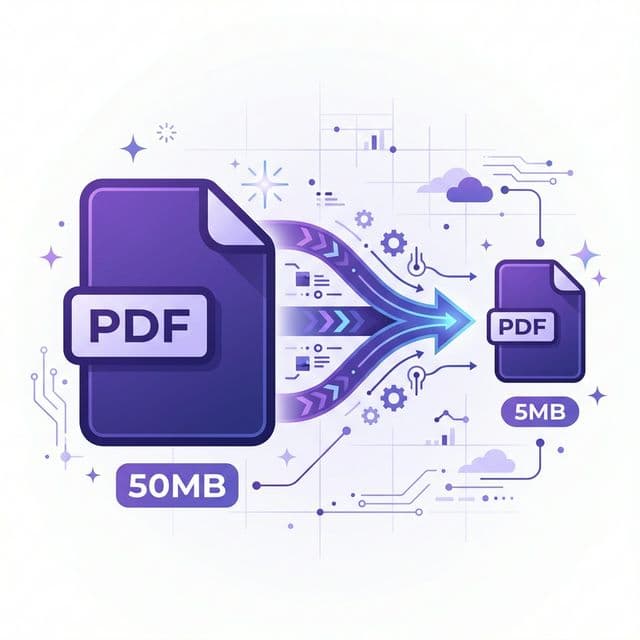
PDF files can be surprisingly large, especially when containing high-resolution images, embedded fonts, or vector graphics. A single report with photos can easily exceed 50MB or more.
Compressing PDFs helps in several critical scenarios:
- Email attachments — Gmail, Outlook limit attachments to 25MB. A compressed PDF passes easily.
- Faster uploads — upload forms, cloud storage, LMS systems all benefit from smaller files.
- Save storage — especially important for organizations managing thousands of documents.
- Faster loading — web-hosted PDFs load quicker for visitors with slow connections.
BetaPDF uses multi-pass compression algorithms (Ghostscript + QPDF) to reduce file size by 50-80% while preserving text sharpness and page layout.
How to Compress PDF with BetaPDF
Follow these simple steps to compress your PDF for free:
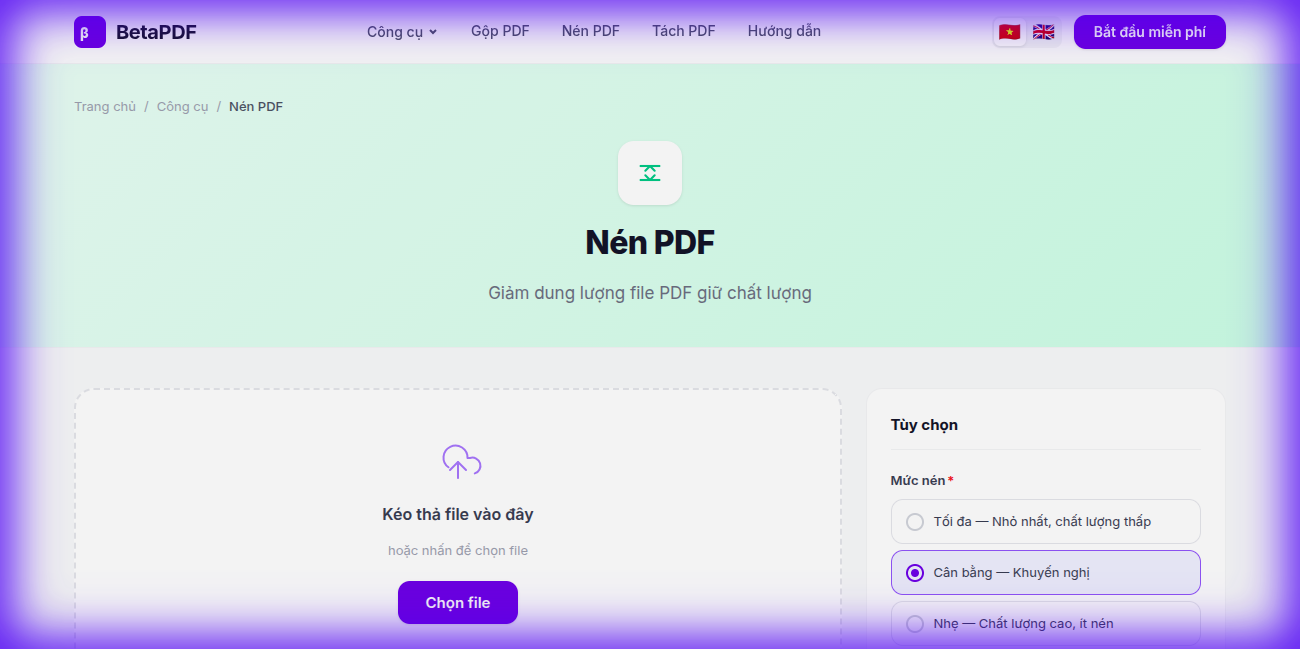
- Upload your PDF: Drag and drop your file onto the dashed upload area, or click the purple "Choose file" button to browse. Files up to 100MB are supported.
- Choose compression level: On the right panel under "Options", select one of 5 levels:
- Maximum — smallest file, lower image quality
- Balanced (Recommended) — best balance of size and quality
- Light — high quality, less compression
- Lossless — lossless, optimizes structure only
- Custom — manually set DPI and quality
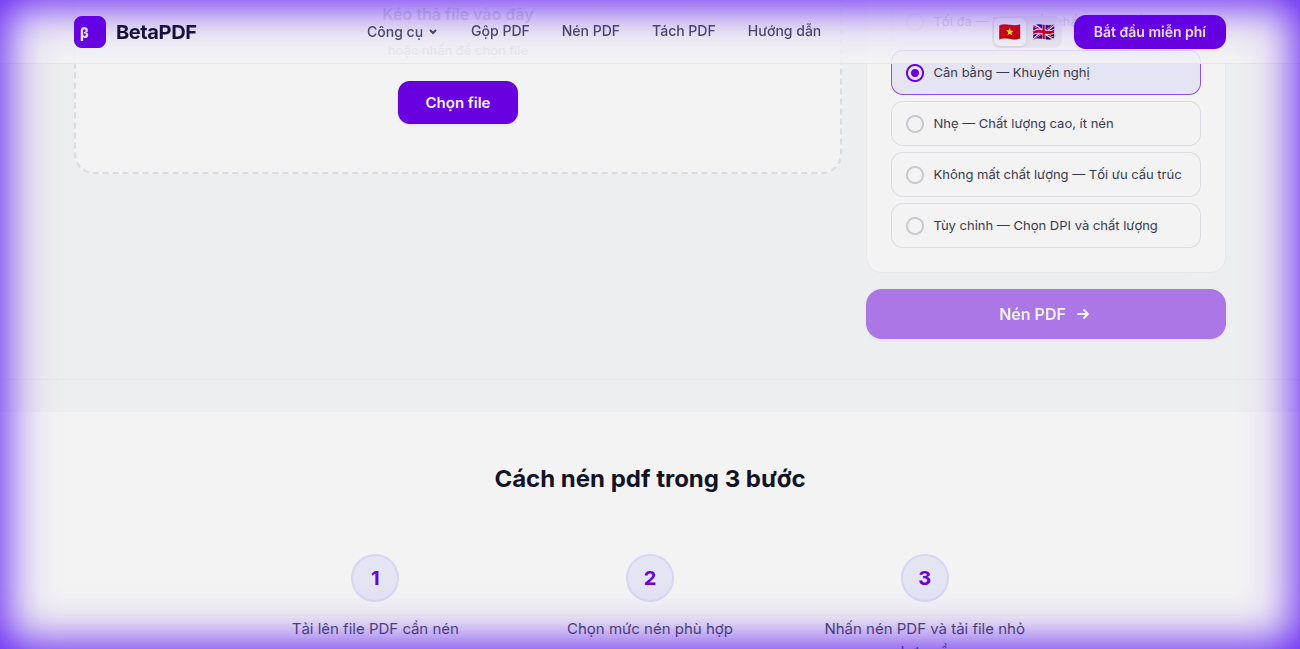
- Click "Compress PDF →": Hit the large purple button. Processing takes just a few seconds.
- Download the result: Your compressed file is ready to download. You'll see the size comparison (before vs after).
The entire process runs in the cloud — no software installation needed. Works on any device: Windows, Mac, Linux, phone, or tablet.
Understanding PDF Compression Methods
There are two main approaches to PDF compression:
Lossless Compression
Removes redundant data without affecting visual quality: duplicate fonts, unused objects, bloated metadata, unoptimized streams. Result: 10-40% smaller with zero quality loss.
Lossy Compression
Reduces image resolution and quality within the PDF. Images are downsampled and re-encoded with JPEG compression. Result: 50-80% smaller, but images may appear slightly less sharp when zoomed in.
BetaPDF combines both methods: first applies lossless optimization, then optionally applies lossy image compression based on your chosen level. Text and vector graphics are never degraded — only raster images are affected.
Tips for Effective PDF Compression
- Image-heavy files benefit most from compression — scanned documents, photo reports, and presentations can be reduced by 60-80%.
- Text-only files are usually already small (under 1MB). Compression may only save 10-20%.
- Compress before emailing — avoid bounced emails due to size limits. A 30MB PDF often compresses to under 5MB.
- Check quality after compressing — open the file and zoom into details like charts, small text, and photos to ensure acceptable quality.
- Keep the original — always save a backup before compressing, especially for archival documents.
- If one compression level isn't enough, try "High" compression — it prioritizes file size over image sharpness.
Other Ways to Compress PDF
Besides BetaPDF, here are other methods to reduce PDF file size:
- Adobe Acrobat Pro — "Save As Other → Reduced Size PDF" or "Optimize PDF". Powerful but requires a paid subscription (~$20/month).
- macOS Preview — File → Export → Quartz Filter → "Reduce File Size". Free but aggressive compression, often degrades quality significantly.
- Ghostscript (command line) —
gs -dPDFSETTINGS=/ebook. Very flexible but requires technical knowledge. - Smallpdf / iLovePDF — Online alternatives. Free tiers have daily limits (typically 1-2 files/day).
BetaPDF stands out with unlimited free compression, no daily limits, no account required, and all processing happens server-side for fast results even on mobile devices.
Frequently Asked Questions
Does compressing a PDF lose content or quality?
Text content is preserved 100%. Only raster images may be slightly reduced in resolution depending on compression level. Vector graphics, fonts, and page layout remain unchanged.
What's the difference between lossy and lossless compression?
Lossless compression removes redundant data (duplicate fonts, unused objects) with zero quality loss but limited size reduction (10-40%). Lossy compression also reduces image resolution for much greater savings (50-80%) but images may be slightly less sharp.
Can I compress a password-protected PDF?
You need to unlock the PDF first before compressing. Use BetaPDF's Unlock PDF tool to remove the password, then compress the unlocked file.
How much can I reduce the file size?
It depends on the file content. Image-heavy PDFs (scans, photo reports) can be reduced by 60-80%. Text-only PDFs may only reduce by 10-20% since text data is already compact.
Can I compress a PDF multiple times?
You can, but re-compressing an already-compressed file won't significantly reduce the size further. For maximum compression, use a higher level on the first attempt.
Is there a file size limit?
BetaPDF supports files up to 100MB. For very large files, consider splitting the PDF first using BetaPDF's Split PDF tool, compressing each part, then merging them back.
Conclusion
PDF compression is an essential skill for anyone working with digital documents. Whether you're emailing reports, uploading assignments, or archiving records, a compressed PDF saves time, storage, and frustration.
BetaPDF makes compression easy: upload, choose a level, and download — all in seconds, completely free, with no registration required.
Ready to shrink your PDF? Try BetaPDF Compress PDF now →