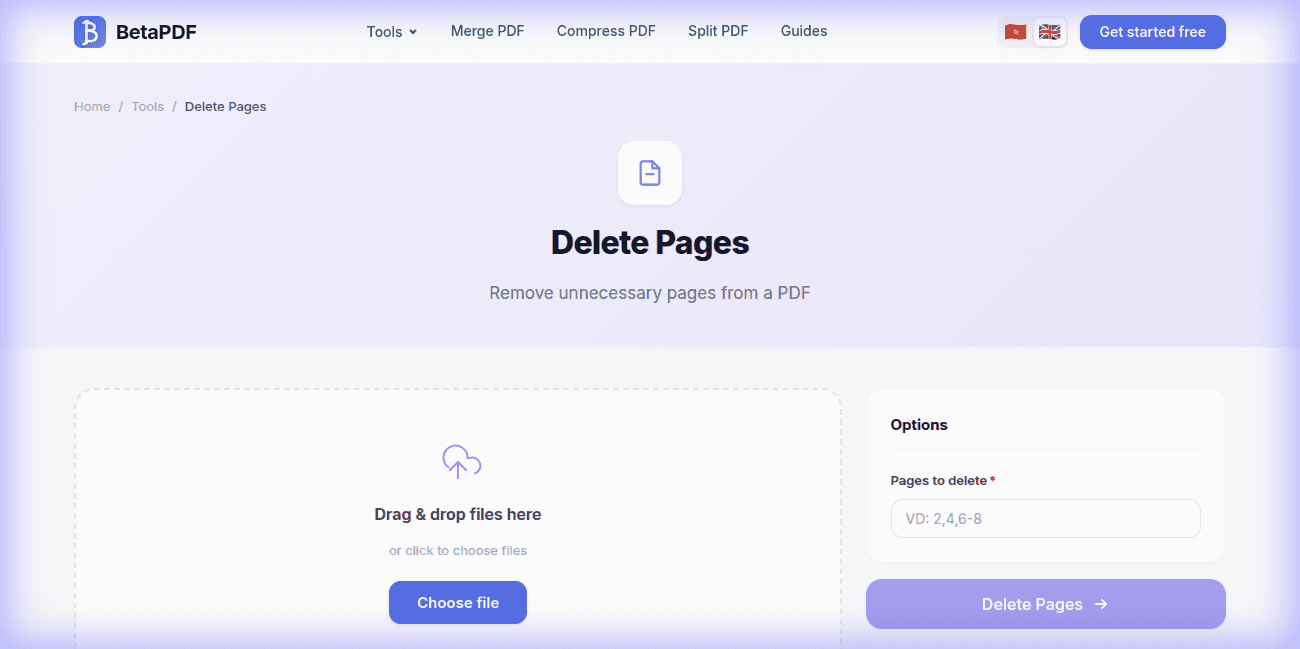
When Do You Need to Delete PDF Pages?
Deleting pages from a PDF is one of the most common document management tasks. Here are typical use cases:
- Remove blank pages — scanners often insert extra blank pages between documents
- Delete cover pages or ads — remove publisher cover pages, advertisements, or appendices you don't need
- Remove sensitive information — delete pages containing confidential data before sharing externally
- Curate content — extract only the chapters or sections relevant to your needs
- Reduce file size — removing unnecessary pages is the most effective way to make a PDF smaller
- Fix scanning errors — remove accidentally scanned pages (wrong document, finger in frame, etc.)
How to Delete PDF Pages with BetaPDF
Follow these simple steps to delete pages from your PDF for free:
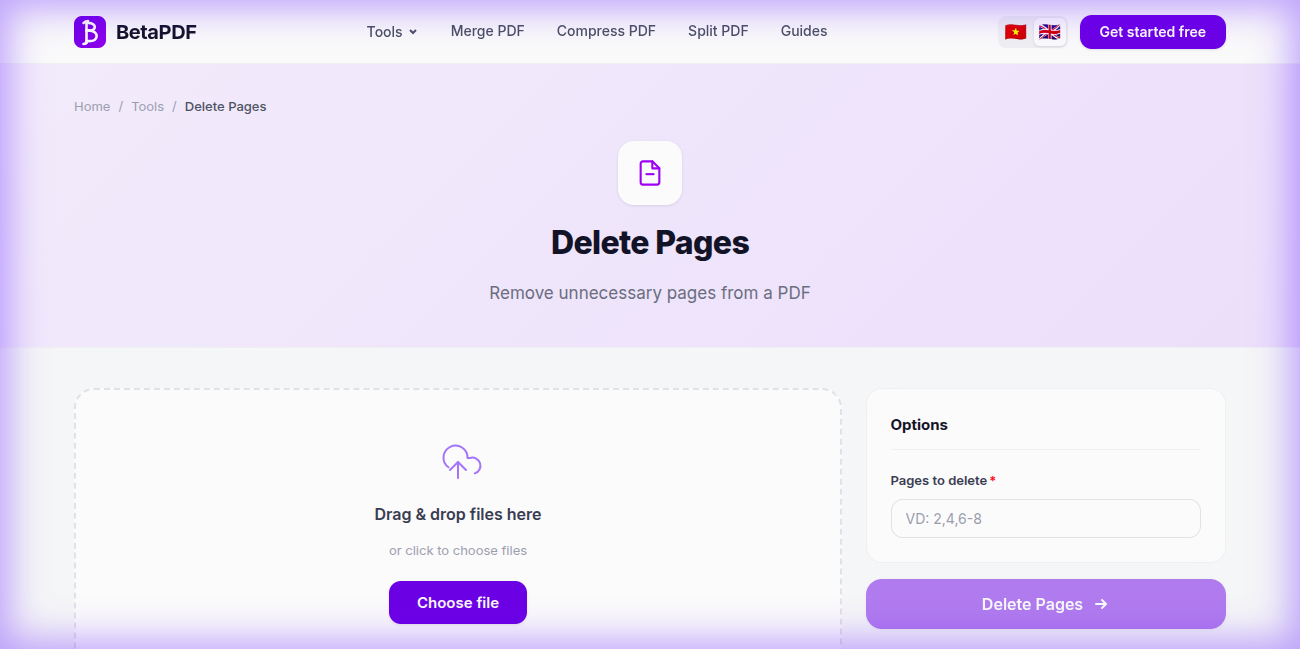
- Upload your PDF: Drag and drop your file onto the dashed upload area, or click "Choose file" to browse. Files up to 100MB are supported.
- Choose pages to delete: In the "Options" panel, enter the page numbers or ranges you want to remove. For example: "2, 5-8, 12" will delete pages 2, 5, 6, 7, 8, and 12.
- Click "Delete Pages →": Hit the purple action button. Processing takes just a few seconds.
- Download the result: Your PDF without the deleted pages is ready to download. The original file remains untouched.
The process is fast and secure — files are processed in the cloud and automatically deleted afterward.
Tips for Deleting PDF Pages
- Always keep the original: Save a backup of your PDF before deleting pages. Once deleted and downloaded, the changes cannot be undone.
- Use page ranges: Instead of entering individual pages, use ranges like "5-10" to save time when deleting consecutive pages.
- Preview page numbers: Open the PDF in a viewer first to identify exactly which pages to delete. Page numbers in the PDF may differ from printed page numbers.
- Combine with other tools: After deleting, use Reorder Pages to rearrange remaining pages, or Compress PDF to further reduce file size.
- Use Extract Pages instead: If you want to keep only a few pages from a large document, it may be easier to use Extract Pages rather than deleting many pages.
Alternative Ways to Delete PDF Pages (Comparison)
Here's a detailed comparison of all methods for deleting pages from PDFs:
1. Adobe Acrobat Pro ($19.99/month)
Tools → Organize Pages → select page thumbnails → press Delete. Pros: Visual thumbnail view, drag-to-select, undo support. Cons: Expensive subscription, heavy software. Overkill if you just need to remove a few pages.
2. macOS Preview (Free — Mac Only)
Open PDF → View → Thumbnails → select pages → press Delete key. Pros: Built-in, free, fast. Cons: Mac-only, no batch processing, accidentally deleting wrong pages is easy without undo.
3. Google Chrome "Print to PDF" (Free — Workaround)
Open PDF in Chrome → Print → change to "Save as PDF" → enter only the pages you want to keep. Pros: Free, works anywhere. Cons: Not intuitive (you specify pages to keep, not delete), loses bookmarks and form fields, cumbersome for large documents.
4. qpdf (Free — Command Line)
qpdf input.pdf --pages . 1-4,9-end -- output.pdf keeps pages 1-4 and 9+, effectively "deleting" pages 5-8. Pros: Scriptable, precise. Cons: Requires installation and terminal knowledge.
5. Smallpdf / iLovePDF (Online — Limited Free)
Upload PDF, select pages to remove visually. Pros: Visual interface. Cons: Free tier limits to 1-2 files/day, some require sign-up, may add watermarks.
Bottom line: BetaPDF offers unlimited free page deletion with visual page selection, no registration, and supports files up to 100MB.
Common Issues When Deleting PDF Pages & How to Fix Them
Here are the most common problems when deleting PDF pages and how to solve them:
1. Wrong Pages Deleted
Cause: PDF page numbers may differ from the printed page numbers in the document (some PDFs start numbering from the cover, others from the first content page). Fix: Open the PDF in a viewer first and note the physical page numbers (shown in the viewer's page counter), not the printed page numbers. Always keep the original file as a backup.
2. Bookmarks Point to Wrong Pages
Cause: Deleting pages shifts all subsequent page numbers, so existing bookmarks that referenced those pages now point to the wrong location. Fix: Review and update the bookmark/table of contents after deleting pages. Consider using Edit Metadata to update document properties.
3. Cross-References Broken in Academic Papers
Cause: Documents with "see Figure 3 on page 12" references will have incorrect page numbers after deletion. Fix: Review the document for broken cross-references and manually update them if needed.
4. Password-Protected PDF Won't Allow Deletion
Cause: The PDF has editing restrictions (owner password). Fix: Use BetaPDF Unlock PDF to remove editing restrictions first, then delete the pages.
5. File Still Large After Deleting Pages
Cause: Some PDFs have shared resources (fonts, images) that aren't cleaned up after page removal. Fix: Use BetaPDF Compress PDF after deleting pages to optimize file size.
Frequently Asked Questions
Is deleting PDF pages free?
Completely free. No registration required, no usage limits, no watermarks. Delete pages from as many PDFs as you need.
Can deleted pages be recovered?
Once the new file is downloaded, deleted pages cannot be recovered from that file. Always keep a copy of the original PDF before deleting pages.
Can I delete pages from a password-protected PDF?
If the PDF has editing restrictions, use BetaPDF's Unlock PDF tool first to remove the password, then delete pages from the unlocked file.
What page format should I use?
Enter individual page numbers separated by commas (2, 5, 12), ranges with dashes (5-8), or combine both (2, 5-8, 12). BetaPDF handles any format.
Can I select pages visually instead of typing numbers?
BetaPDF currently uses page number input for precise selection. You can open the PDF in any viewer first to identify the exact pages, then enter the numbers. Visual thumbnail selection is planned for a future update.
What's the maximum file size supported?
BetaPDF supports PDF files up to 100MB. For larger files, consider splitting the PDF first using BetaPDF's Split PDF tool.
Conclusion
Deleting unwanted pages from a PDF is essential for document management — whether you're removing blank pages, cleaning up scanned documents, or removing sensitive content before sharing.
BetaPDF makes it simple: upload, specify the pages to remove, and download your cleaned-up PDF in seconds — completely free, no registration required.
Ready to clean up your PDF? Try BetaPDF Delete Pages now →