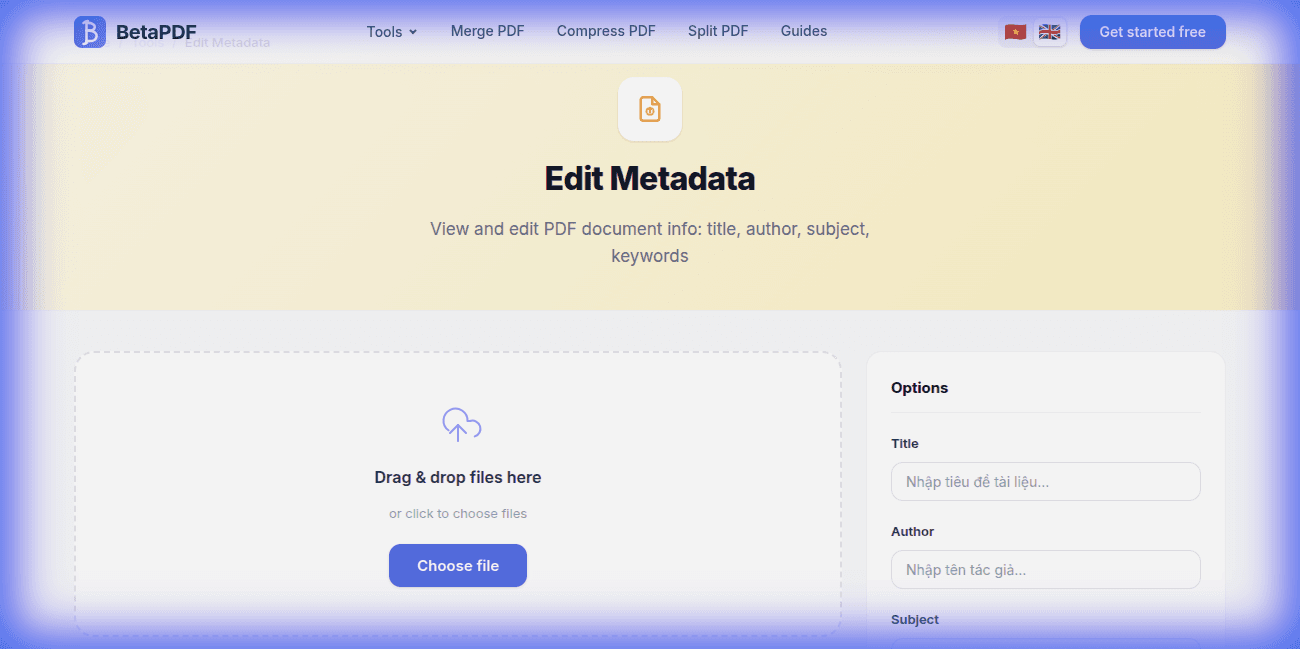
What is PDF Metadata?
PDF metadata is hidden information embedded within a PDF file that describes the document. Think of it as "data about data." Every PDF contains these metadata fields:
- Title: The document name displayed in browser tabs and search results — often more important than the filename
- Author: Who created the document — important for attribution and copyright
- Subject: A brief description of the document's topic or purpose
- Keywords: Search terms that help people find the document — crucial for SEO when PDFs are published online
- Creator: The software used to create the PDF (e.g., Microsoft Word, Adobe InDesign)
- Producer: The software used to convert/produce the PDF
- Creation Date & Modification Date: Timestamps for when the document was created and last modified
Editing metadata improves SEO for online PDFs, ensures professional document management, and can help protect your privacy by removing unwanted personal information.
How to Edit PDF Metadata with BetaPDF
Follow these steps to edit your PDF's metadata for free:
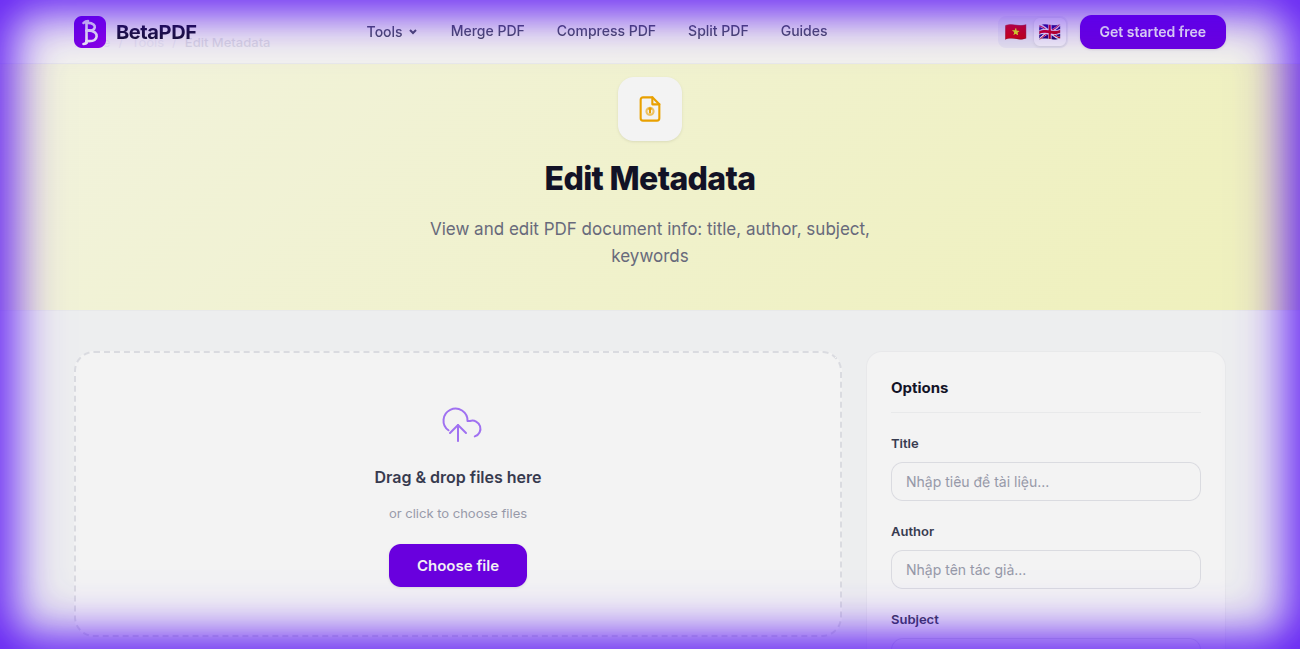
- Upload your PDF: Drag and drop your file onto the upload area, or click "Choose file" to browse.
- View current metadata: BetaPDF automatically reads and displays all existing metadata fields from your PDF.
- Edit the fields: Modify the Title, Author, Subject, and Keywords fields as needed. Leave fields blank to clear them.
- Click "Update →": Hit the purple action button to apply changes.
- Download the result: Your PDF with updated metadata is ready to download.
The process is instant and does not alter the visible content of your PDF in any way.
PDF Metadata Best Practices
- Write descriptive titles: Use clear, descriptive titles instead of filenames. "Q4 2025 Financial Report" is better than "report_final_v2.pdf".
- Add SEO keywords: If your PDF will be published online, add relevant keywords to help Google index and rank it properly.
- Set the correct author: Use your organization's name for official documents, not personal names, unless attribution is important.
- Use subject for categorization: The subject field helps with document management systems and enterprise search.
- Remove sensitive metadata: Before sharing files externally, check and remove any personal information (author name, company name, creation software) that you don't want exposed.
- Batch processing: For multiple files, consider processing them one at a time through BetaPDF — each takes only seconds.
Alternative Tools for Editing PDF Metadata (Comparison)
Here's a detailed comparison of all methods for editing PDF metadata:
1. Adobe Acrobat Pro ($19.99/month)
File → Properties → Description tab → edit fields. Pros: Full control over all metadata fields including XMP, custom properties, and document security settings. Cons: Expensive subscription, heavy software. Massive overkill if you just need to update a title or author.
2. ExifTool (Free — Command Line)
exiftool -Title="My Report" -Author="John Doe" -Keywords="report,2025,finance" file.pdf. Pros: Free, extremely powerful, can edit any metadata field including XMP, scriptable for batch processing. Cons: Requires installation and command-line knowledge. No visual interface.
3. PDF-XChange Editor (Free — Windows Only)
File → Document Properties → edit fields. Pros: Free for basic features, good UI. Cons: Windows-only, adds a small "edited with PDF-XChange" mark in some cases on the free tier.
4. macOS Preview (Free — Limited)
Tools → Show Inspector → view metadata. Pros: Built-in. Cons: Can only view metadata, not edit it. Very limited.
5. qpdf (Free — Command Line)
Can modify some metadata fields via command-line JSON manipulation. Pros: Free, scriptable. Cons: Complex syntax, limited compared to ExifTool.
Bottom line: BetaPDF is the easiest option — no installation, no registration, no cost. Upload, edit the fields visually, and download. Perfect for quick metadata updates.
Common Metadata Issues & How to Fix Them
Here are the most common problems with PDF metadata and how to solve them:
1. Metadata Not Visible in PDF Viewer
Cause: Most PDF viewers don't display metadata by default. Chrome doesn't show metadata at all. Fix: In Adobe Reader, go to File → Properties to see metadata. In Firefox, click the document properties icon. For other viewers, look for "Document Properties" in the menu.
2. Old Metadata Persists After Editing
Cause: PDFs can store metadata in two locations: the Document Info Dictionary and XMP (Extensible Metadata Platform). Some tools only update one. Fix: BetaPDF updates both locations to ensure consistency. If you edited with another tool and metadata seems stale, re-edit with BetaPDF.
3. Privacy Concerns — Personal Info in Metadata
Cause: PDFs created from Word, Excel, or other editors automatically embed your name, company name, computer username, and creation software. Fix: Before sharing files externally, use BetaPDF to clear all metadata fields — leave them blank to remove personal information.
4. Google Not Updating After Metadata Change
Cause: Google re-crawls pages on its own schedule. After changing metadata for SEO, it may take days to weeks for Google to pick up the changes. Fix: Re-upload the PDF with correct metadata, then request re-indexing in Google Search Console for faster updates.
5. Metadata Encoding Issues (Special Characters)
Cause: Some metadata fields don't handle non-ASCII characters (accented letters, CJK characters) correctly in older PDF standards. Fix: BetaPDF uses UTF-8 encoding which supports all international characters. If characters appear garbled in viewers, the viewer may have font issues.
Frequently Asked Questions
Does editing metadata change PDF content?
No. Metadata is descriptive information only — it lives in a separate section of the PDF and doesn't affect the visible text, images, or layout of your document.
Why is metadata important?
Metadata helps organize documents, improves SEO when PDFs are indexed by Google (Title and Keywords fields), ensures professional presentation (proper Author attribution), and can protect privacy (by removing personal info).
Can I remove all metadata?
Yes. Simply clear all fields in BetaPDF's metadata editor and click update. This removes Title, Author, Subject, and Keywords — useful for privacy when sharing documents externally.
Does Google use PDF metadata for ranking?
Yes. Google reads the Title and Keywords metadata fields when indexing PDFs. A descriptive Title often appears as the search result heading, and Keywords help Google understand the document's topic.
What metadata fields can I edit?
BetaPDF lets you edit Title, Author, Subject, and Keywords — the four most important metadata fields. Creator, Producer, and date fields are handled automatically.
Can I batch edit metadata for multiple PDFs?
BetaPDF currently processes one file at a time, but each edit takes just seconds. For large batches, ExifTool (command-line) is better suited for batch processing.
Conclusion
PDF metadata may be invisible to most readers, but it plays a crucial role in SEO, document management, and privacy. Properly optimized metadata helps your PDFs rank better in search engines and presents a professional image.
BetaPDF makes metadata editing simple: upload your PDF, edit the fields, and download — all in seconds, completely free.
Ready to optimize your PDF metadata? Try BetaPDF Edit Metadata now →