What Is PDF Page Extraction?
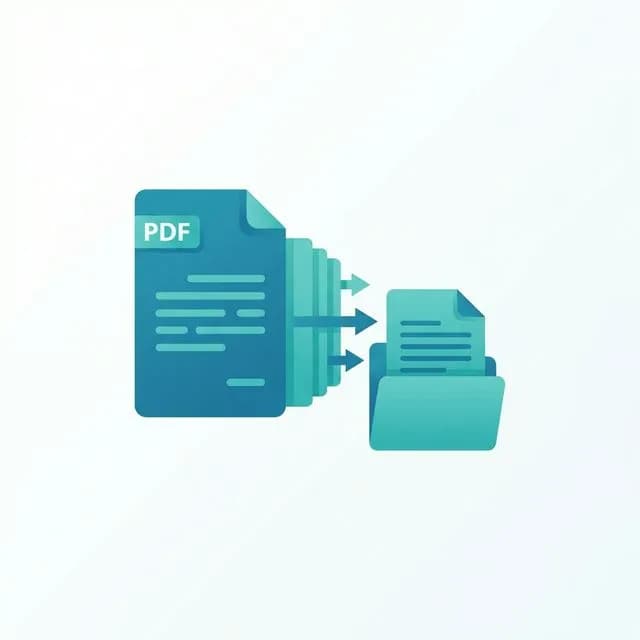
PDF page extraction lets you pull out specific pages from a PDF document and save them as a new, separate file. Instead of sharing an entire 50-page report, you can extract just the 3 pages your colleague needs — keeping things focused and file sizes small.
Common use cases include:
- Sharing specific sections — send only the relevant pages from a long report
- Creating handouts — pull key slides or summary pages for presentations
- Removing sensitive content — extract only the pages that are safe to share
- Archiving — save important pages separately for quick reference
Unlike splitting (which divides the entire PDF), extraction lets you cherry-pick exactly which pages you want.
How to Extract Pages with BetaPDF
Follow these simple steps to extract pages from your PDF:
- Upload your PDF — drag and drop or click to select your file
- Specify pages — enter the page numbers you want (e.g.,
1-3, 5, 7-9) - Click Process — BetaPDF creates a new PDF with only your selected pages
- Download — save your extracted pages as a new PDF file
The page selector supports flexible formats: individual pages (1, 3, 5), ranges (1-5), or combinations (1-3, 7, 10-12). Your original file is never modified.
Tips for Better Page Extraction
Get the most out of PDF page extraction with these tips:
- Preview first — open the PDF and note which pages you need before extracting
- Use page ranges — for consecutive pages, use ranges like
5-10instead of listing each page individually - Check page numbering — the tool uses physical page numbers (starting from 1), not the printed page numbers in headers/footers
- Combine with merge — extract pages from multiple PDFs, then merge them into one document
- Verify output — always open the extracted PDF to confirm all desired pages are included
BetaPDF vs Other Extraction Methods
How does BetaPDF compare to other ways of extracting PDF pages?
| Feature | BetaPDF | Adobe Acrobat | Desktop Apps |
|---|---|---|---|
| Cost | Free | $19.99/mo | Varies |
| Installation | None | Required | Required |
| Page range support | ✅ | ✅ | ✅ |
| Works on mobile | ✅ | Limited | ❌ |
| Preserves formatting | ✅ | ✅ | ✅ |
Common Issues & Solutions
- Wrong pages extracted — double-check that you're using physical page numbers, not the printed page numbers shown in headers/footers. Page 1 in the tool is always the first page of the PDF.
- Missing bookmarks — extracted pages may not retain the original document's bookmarks. You can re-add bookmarks using a PDF editor if needed.
- Large output file — if the extracted PDF is still large, use the Compress PDF tool to reduce its size.
- Encrypted PDF — if the PDF is password-protected, unlock it first with the Unlock PDF tool before extracting pages.
Frequently Asked Questions
Find answers to common questions about extracting PDF pages.
Can I extract non-consecutive pages?
Yes. Enter individual pages and ranges separated by commas, like 1, 3, 7-10. The tool will combine all selected pages into a single new PDF.
Does extraction modify my original PDF?
No. Your original file is never changed. The tool creates a brand new PDF containing only the pages you selected.
Is there a page limit?
BetaPDF handles PDFs of any size. Whether your document has 10 pages or 500, you can extract whichever pages you need.
Can I extract pages on my phone?
Yes. BetaPDF works on any mobile browser — no app installation needed. Upload your PDF and extract pages on the go.
What's the difference between extracting and splitting?
Extracting lets you pick specific pages to create one new PDF. Splitting divides the entire document into multiple parts automatically.
Conclusion
Extracting pages from a PDF shouldn't require expensive software or technical knowledge. BetaPDF makes it simple: upload, select your pages, and download. Whether you need to share a few pages from a report or archive specific sections, the Extract Pages tool has you covered — free, fast, and private.