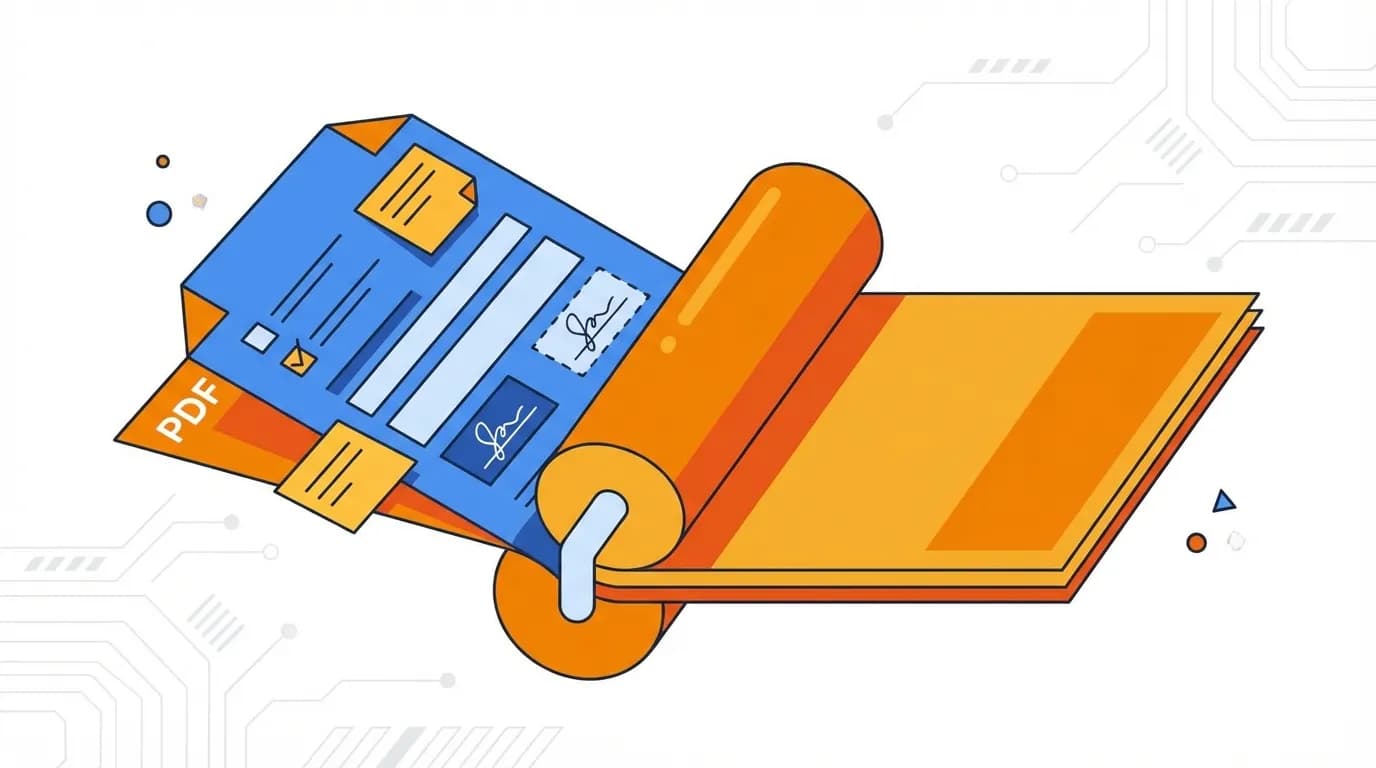
What Is PDF Flattening?
Flattening a PDF converts all interactive elements — fillable form fields, annotations, comments, and layers — into static, non-editable content. Once flattened, the document looks exactly the same, but nobody can modify the form data or move annotations around.
Common use cases include:
- Freeze filled forms — prevent anyone from changing answers on submitted applications or contracts
- Lock annotations — embed comments, highlights, and markup into the page permanently
- Reduce compatibility issues — some PDF viewers display interactive elements differently; flattening ensures consistent appearance everywhere
- Prepare for archiving — create a final, immutable version of a document for records
How to Flatten PDF with BetaPDF
Flatten your PDF in just a few clicks:
- Upload your PDF — drag and drop or click to select the file with forms or annotations
- Choose options — select whether to flatten forms, annotations, or both
- Click Process — BetaPDF converts all interactive elements to static content
- Download — save the flattened PDF
The flattened document will look identical to the original, but all form fields and annotations are now part of the page content and cannot be edited.
Tips for PDF Flattening
- Keep the original — always save a copy of the unflattened PDF in case you need to make changes later
- Flatten before sharing — if you've filled out a form, flatten it before sending to ensure the recipient can't modify your entries
- Check annotations — verify that all comments and highlights appear correctly in the flattened version
- Combine with watermark — add a "FINAL" or "APPROVED" watermark before flattening to make the status permanent
- Use for printing — flattened PDFs print more reliably since all elements are embedded in the page
BetaPDF vs Other Flattening Methods
| Feature | BetaPDF | Adobe Acrobat | Print to PDF |
|---|---|---|---|
| Cost | Free | $19.99/mo | Free |
| Flatten forms | ✅ | ✅ | ✅ |
| Flatten annotations | ✅ | ✅ | Varies |
| Selective flatten | ✅ (forms/annotations) | ✅ | ❌ |
| Quality preserved | ✅ (vector) | ✅ | May rasterize |
The "Print to PDF" method sometimes rasterizes text (converting it to images), which reduces quality. BetaPDF keeps text as text.
Common Issues & Solutions
- Form fields still editable — make sure you selected "Flatten forms: Yes" in the options. If the form uses JavaScript, some dynamic fields may need special handling.
- Annotations missing — check that "Flatten annotations" is enabled. Some annotation types (like file attachments) may not be visible after flattening.
- File size increased — flattening can slightly increase file size as elements are embedded. Use Compress PDF afterward to optimize.
- Text became an image — this happens with "Print to PDF" methods, not with BetaPDF. Our tool preserves text as selectable text.
Frequently Asked Questions
Common questions about flattening PDFs.
Can I unflatten a PDF?
No. Flattening is a one-way process. Once form fields and annotations are merged into the page content, they cannot be separated back into interactive elements. Always keep a copy of the original.
Does flattening change how the PDF looks?
No. The visual appearance stays exactly the same. The only difference is that interactive elements (form fields, annotations) become static and non-editable.
Should I flatten before or after adding a watermark?
Add your watermark first, then flatten. This locks the watermark into the page so it cannot be removed.
Will flattening reduce the file size?
It can slightly increase or decrease file size depending on the content. For significant size reduction, use the Compress PDF tool after flattening.
Conclusion
Flattening a PDF ensures your document is final and unmodifiable. Whether you're submitting a filled form, archiving a reviewed document, or preparing for print, BetaPDF's Flatten tool locks everything in place — while preserving text quality and visual fidelity. Free, fast, and no installation needed.