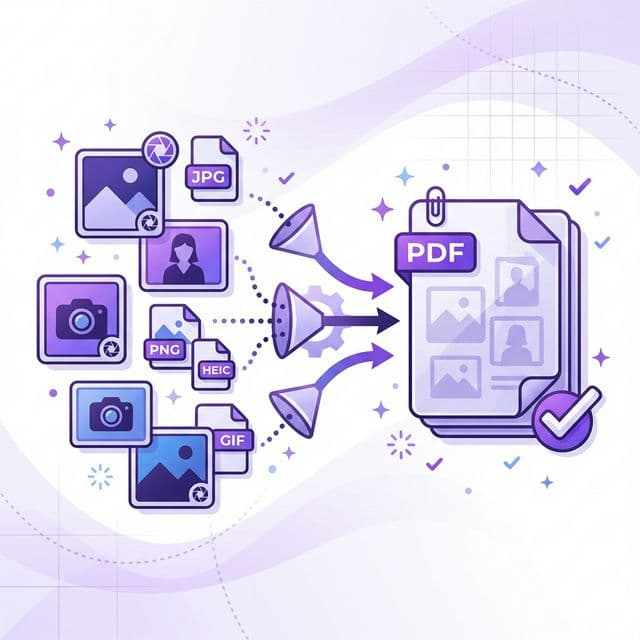
When Do You Need to Convert Images to PDF?
Converting images to PDF is one of the most common document tasks for both work and education. Here are the most frequent scenarios:
- Scanning documents with your phone — take photos of receipts, contracts, or ID cards, then convert to PDF for email or archival. PDF is the standard format accepted by government offices, banks, and schools.
- Creating photo portfolios — combine dozens of product photos, design mockups, or travel photos into a single, easy-to-share PDF file.
- Online form submissions — many government websites, universities, and job applications require documents in PDF format. Converting your photos or scans to PDF ensures they're accepted.
- Preserving image quality — unlike sharing images through messaging apps (which compress them), PDF preserves the original resolution and color fidelity.
- Organizing multiple images — instead of sending 20 separate image files, combine them into one PDF with proper page ordering.
BetaPDF makes this conversion fast, free, and completely online — no software installation required.
How to Convert Images to PDF with BetaPDF
Follow these steps to convert your images to PDF for free:
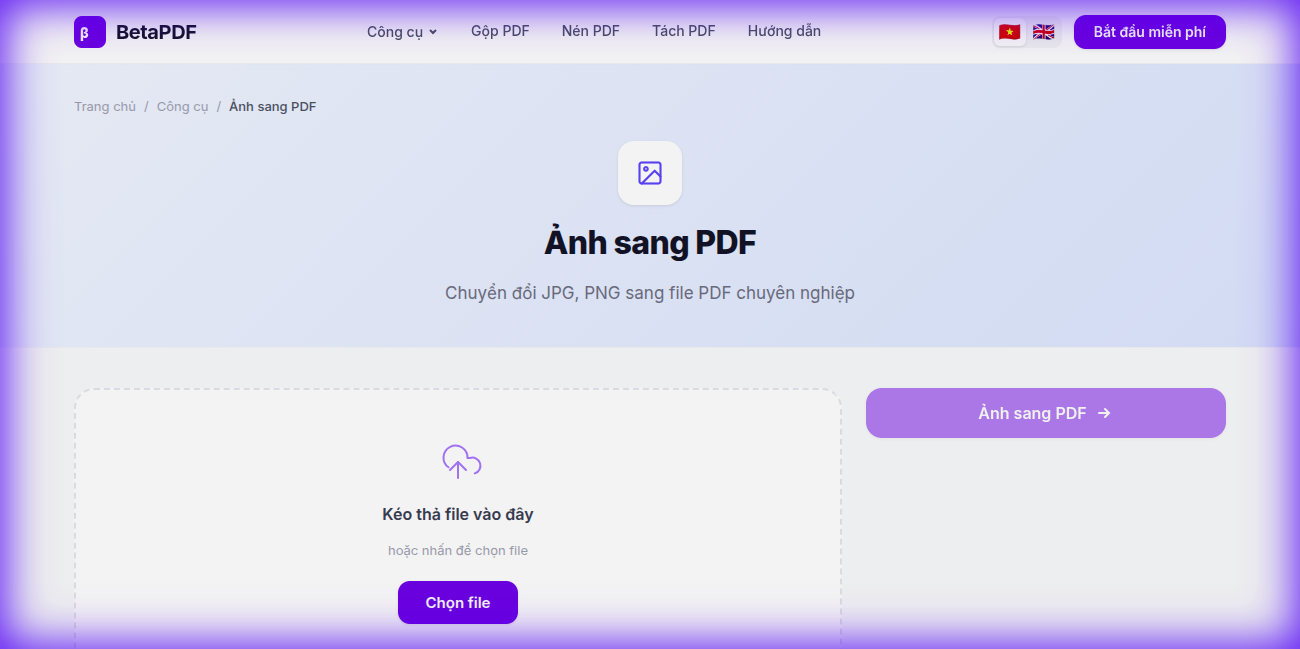
- Upload your images: Drag and drop image files onto the dashed upload area, or click the "Choose file" button to browse. BetaPDF supports JPG, PNG, WebP, HEIC, BMP, TIFF, and GIF. You can upload up to 20 images at once.
- Arrange the order: After uploading, drag and drop to rearrange images in the order you want them to appear in the PDF. Each image becomes one page.
- Click "Images to PDF →": Hit the large purple button on the right side. Processing takes just a few seconds, even for many images.
- Download your PDF: Your multi-page PDF is ready to download. Original images are never modified.
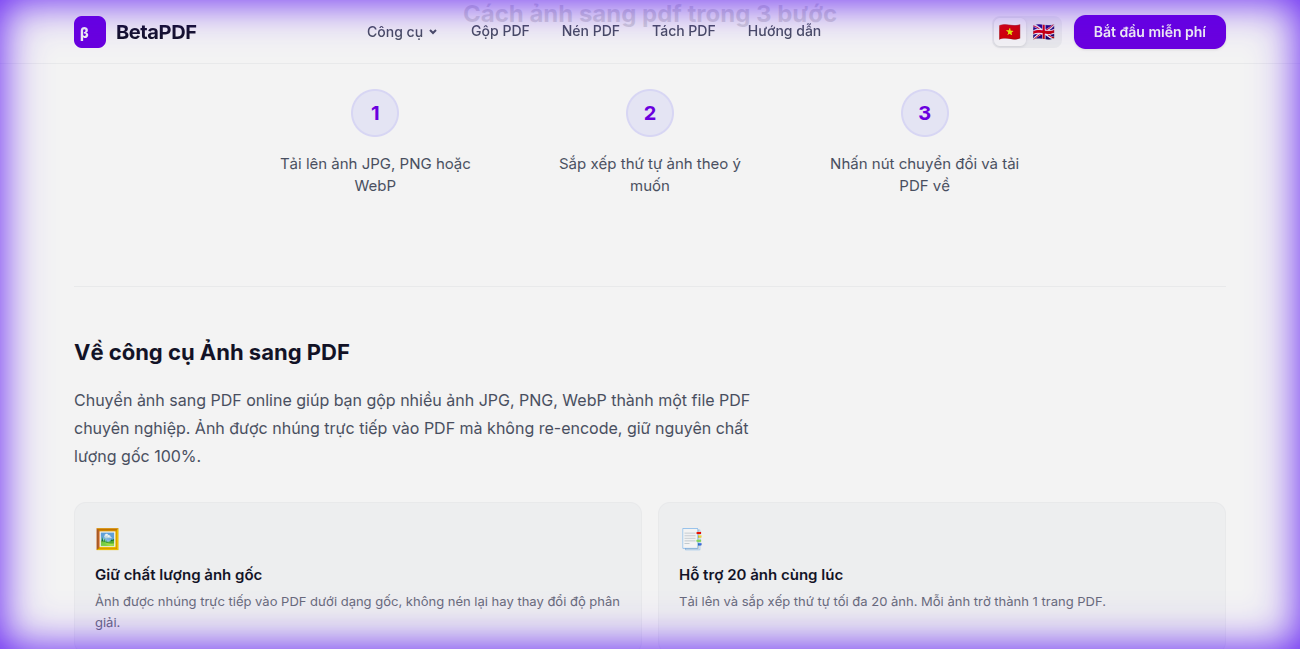
The entire process works in your browser — no app needed. Perfect for phone, tablet, or desktop.
Converting Images to PDF on Mobile
BetaPDF works perfectly on mobile browsers (Chrome, Safari, Firefox) without any app installation. Here's how to do it on your phone:
iPhone / iPad
- Open Safari and go to BetaPDF
- Tap "Choose files" and select photos from your Camera Roll
- HEIC photos from iPhone are automatically supported — no conversion needed
- Rearrange, then tap "Convert to PDF"
Android
- Open Chrome and go to BetaPDF
- Tap "Choose files" → select from Gallery or Files
- Multiple selection: long-press the first photo, then tap to add more
- Rearrange and convert
Pro tip: Use your phone camera to scan documents, then immediately convert the photos to PDF — it's like having a portable scanner!
Tips for Better Results
- Take clear, well-lit photos: For document scanning, use good lighting and hold your phone steady. Avoid shadows and glare.
- Crop before converting: Trim off unnecessary borders from photos for cleaner PDF pages.
- Sort images by filename: Name your files in sequence (01.jpg, 02.jpg, etc.) so they upload in the correct order.
- Choose the right page size: Use A4 for standard documents, or "Fit to image" for photos to avoid white borders.
- Compress after converting: If your PDF is too large (e.g., many high-res photos), use BetaPDF's Compress PDF tool to reduce the file size.
- Batch processing: You can upload up to 20 images at once — no need to convert one at a time.
Other Ways to Convert Images to PDF
Besides BetaPDF, here are alternative methods:
- iPhone Photos app — Select photos → Share → Print → pinch to zoom on preview → creates PDF. Works but limited: no page reordering, no settings.
- Google Drive (Android) — Upload photos → "Open with" → Google Docs → Download as PDF. Cumbersome and adds margins.
- Adobe Acrobat Pro — File → Create PDF → From Multiple Files. Full-featured but requires a paid subscription (~$20/month).
- macOS Preview — Select images → drag to Preview sidebar → Export as PDF. Free on Mac, but not available on mobile.
- Smallpdf / iLovePDF — Online alternatives with daily limits on free tier (typically 1-2 conversions/day).
BetaPDF stands out with unlimited free conversions, no account required, HEIC support, and drag-and-drop reordering — all in your browser.
Frequently Asked Questions
What image formats are supported?
BetaPDF supports JPG, JPEG, PNG, WebP, HEIC (iPhone), BMP, TIFF, and GIF. You can mix different formats in a single conversion — for example, uploading both JPG and PNG files together.
Can I convert images to PDF on my phone without an app?
Yes! BetaPDF works entirely in your mobile browser (Chrome, Safari, Firefox). No app download or installation needed. Simply open the website, upload your photos, and download the PDF.
Does image quality decrease when converting to PDF?
No. BetaPDF preserves the original resolution and quality of your images. Each image is embedded in the PDF at its original size without any compression or quality loss.
How many images can I convert at once?
You can upload up to 20 images in a single conversion. Each image becomes one page in the resulting PDF. For larger batches, convert in two passes and merge the PDFs using BetaPDF's Merge tool.
Can I rearrange the page order after uploading?
Yes! After uploading, you can drag and drop images to rearrange their order. The final PDF will follow your custom page sequence.
Do HEIC photos from iPhone work?
Yes. BetaPDF fully supports HEIC format from iPhones. Your HEIC photos are automatically processed — no need to convert them to JPG first.
Conclusion
Converting images to PDF is an essential skill in today's digital world. Whether you're scanning documents, creating photo portfolios, or preparing submissions, BetaPDF makes it effortless.
Upload your images, arrange the pages, and download your PDF — all in seconds, completely free, with no registration required. Works on any device.
Ready to convert? Try BetaPDF Images to PDF now →