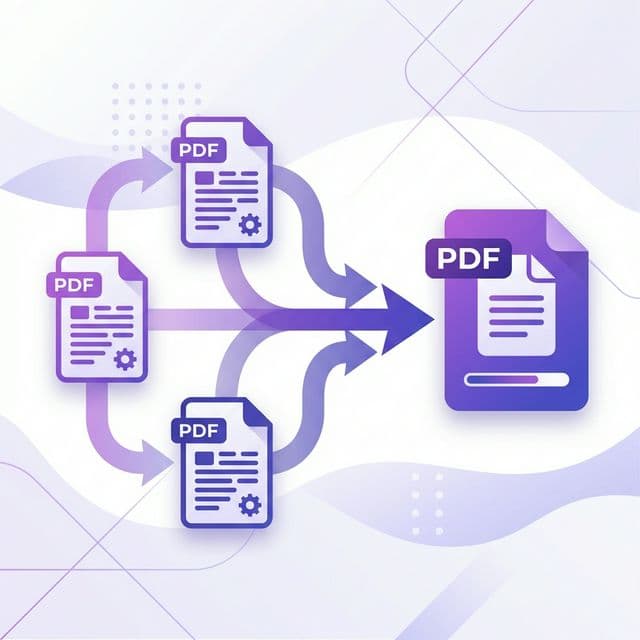
What is PDF Merging? When Do You Need It?
PDF merging (also called combining or joining PDFs) is the process of combining multiple PDF documents into a single file while preserving the content, formatting, and quality of each original file.
It's one of the most commonly needed PDF operations, especially useful in these situations:
- Job applications: Many online portals require a single PDF upload — you need to merge your resume, cover letter, certificates, and ID into one file.
- Scanned documents: When scanning pages individually with a phone or scanner, each page becomes a separate file — merge them into a complete document.
- Reports and books: Combine chapters, sections, or reports from different sources into one seamless document.
- Professional emails: Instead of attaching 5-10 separate files, send one merged PDF for a cleaner, more professional presentation.
- Financial records: Consolidate invoices, receipts, and contracts by month or quarter for easier record keeping.
With BetaPDF, you can merge PDFs completely free, with no file limits, no account required, and processing happens right in your browser.
How to Merge PDFs with BetaPDF (3 Steps)
BetaPDF is designed to make PDF merging as fast as possible — just 3 steps:
- Upload files: Click the upload area or drag and drop the PDF files you want to merge. You can select multiple files at once from your file manager.
- Arrange order: Drag and drop files to reorder them. The first file will appear at the beginning of the merged document. You can also preview page thumbnails before merging.
- Click "Merge PDF" and download: Hit the process button, wait a few seconds, then download your merged PDF. The result preserves 100% of the original quality.
Why choose BetaPDF:
- ✅ No software installation — works on any browser (Chrome, Safari, Firefox, Edge)
- ✅ All devices supported — desktop, mobile, tablet
- ✅ Lightning fast — merge 10 files in seconds
- ✅ Complete privacy — files are automatically deleted after processing
- ✅ 100% free — no limits, no annoying ads, no watermarks
Alternative Ways to Merge PDFs (Comparison)
Besides BetaPDF, there are several other ways to merge PDFs. Here's a detailed comparison to help you choose:
1. Adobe Acrobat Pro (Paid Software)
Adobe Acrobat Pro offers PDF merging with advanced options like bookmarks and page numbering. However, it costs $19.99/month — overkill if you only need to merge files occasionally.
2. macOS Preview (Mac Only)
On Mac, you can use Preview to drag pages from one PDF to another. It's free but quite cumbersome with multiple files and only works on macOS.
3. Google Drive
Google Drive doesn't have a built-in PDF merge feature. You could open files in Google Docs and copy-paste, but this destroys the original formatting — not recommended.
4. Other Online Tools (iLovePDF, SmallPDF...)
These tools are also free but often limit files per day, require sign-up, or add watermarks on the free tier. BetaPDF has none of these limitations.
Bottom line: For fast, free, unlimited PDF merging — BetaPDF is the best choice.
Tips & Best Practices for Merging PDFs
Follow these best practices for optimal results:
- Double-check file order before merging: Especially critical for job applications, multi-part reports, and legal documents. One misplaced file can cause serious confusion.
- Compress after merging: Merged files from multiple documents can be large. Use BetaPDF's Compress PDF tool to reduce size by 50-80% without quality loss.
- Name your files clearly: After merging, rename the result file descriptively (e.g., "Application_JohnDoe_2025.pdf" instead of "merged.pdf").
- Review the merged file: Open the result and scroll through all pages to verify correct order and completeness.
- Keep backups: Always keep the original PDF files before merging, in case you need to make changes later.
- Large file support: BetaPDF supports files up to 100MB each. For larger files, compress them first, then merge.
Common Issues When Merging PDFs & How to Fix Them
Here are the most common problems when merging PDFs and how to solve them:
1. Password-Protected PDF Files
If a PDF is password-protected, you need to unlock it first before merging. Use BetaPDF's Unlock PDF tool to remove the password (if you have authorization), then merge normally.
2. Wrong Page Order After Merging
Usually caused by uploading files in the wrong order. Fix: Rearrange files on BetaPDF before clicking merge, or use the Reorder PDF Pages tool afterward.
3. Merged File Too Large for Email
Most email services limit attachments to 25MB. Solution: After merging, use BetaPDF's Compress PDF tool to reduce file size by 50-80%.
4. Fonts Display Incorrectly
Rare issue, usually with PDFs created by legacy software. BetaPDF preserves embedded fonts from the original PDFs, so this almost never happens.
5. Corrupted PDF Files
If the source file is damaged, try using BetaPDF's Repair PDF tool first, then attempt merging again.
Frequently Asked Questions
Is merging PDFs free?
Completely free. BetaPDF has no usage limits, doesn't require account registration, and never adds watermarks or ads to your merged files.
How many files can I merge at once?
You can merge as many PDF files as you need on BetaPDF. Each file has a 100MB size limit. There's no cap on the number of files.
Does merging reduce PDF quality?
No. BetaPDF preserves the original quality of every page. Content, images, fonts, hyperlinks, and bookmarks are kept 100% intact.
Can I merge PDFs on my phone?
Yes. BetaPDF works on any mobile browser (Chrome, Safari on iOS/Android). Just open the website, upload files, and merge — no app installation needed.
Does merging preserve bookmarks and hyperlinks?
Yes. BetaPDF preserves all bookmarks, hyperlinks, form fields, and annotations from the original PDF files. Document structure is fully maintained.
What if the merged file is too large?
After merging, use BetaPDF's Compress PDF tool to reduce file size by 50-80% without quality loss. This is especially effective for files with many images.
Conclusion
Merging PDF files is a simple but essential task for work, school, and everyday document management. With BetaPDF, you can:
- ✅ Merge unlimited PDF files, completely free
- ✅ No software installation needed — works on any device
- ✅ Complete privacy — files auto-deleted after processing
- ✅ Fast processing, 100% quality preserved
After merging, continue with other BetaPDF tools like Compress PDF to reduce file size, Add Page Numbers for easy navigation, or Protect PDF to secure your document.
Start merging your PDFs now — free, fast, and secure!