What Is OCR and Why Do Scanned PDFs Need It?
Have you ever tried to search for a word in a scanned PDF and got zero results? Or tried to copy text from a PDF only to find you can't select anything? That's because scanned PDFs are essentially images — they look like text but are actually pictures of text.
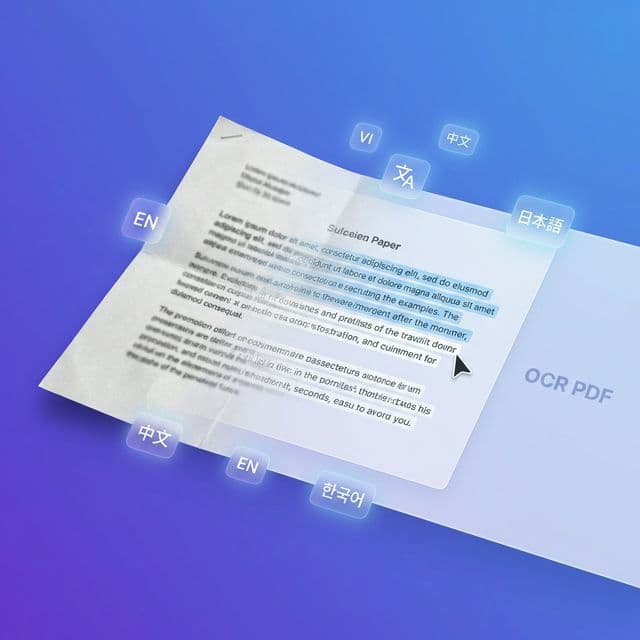
OCR (Optical Character Recognition) is the technology that solves this problem. It reads the images in your scanned PDF, recognizes the characters, and adds an invisible text layer on top. The result is a searchable PDF — it looks exactly the same, but now you can:
- 🔍 Search for any word with Ctrl+F
- 📋 Copy and paste text into other documents
- ♿ Accessibility — screen readers can read the text
- 🗂️ Archive — digitize paper documents for long-term storage
Whether you're digitizing old contracts, scanning receipts, or archiving handwritten notes, OCR transforms static images into usable, actionable text.
How to OCR a PDF with BetaPDF (3 Easy Steps)
Converting your scanned PDF to searchable text takes less than a minute:
Step 1: Upload Your Scanned PDF
Click "Choose File" or drag and drop your scanned PDF into the upload area. BetaPDF accepts PDF files up to 50 pages.
Step 2: Click "Process"
BetaPDF automatically detects the language in your document and applies OCR. Our engine supports 5 languages simultaneously — English, Vietnamese, Chinese (Simplified), Japanese, and Korean. No need to manually select a language!
Step 3: Download Your Searchable PDF
Once processing is complete, download your new PDF. It looks identical to the original but now has a hidden text layer that enables searching, copying, and text selection.
That's it! Your scanned PDF is now fully searchable. Try OCR PDF now →
Supported Languages — Automatic Detection
BetaPDF's OCR engine supports 5 major languages with automatic detection:
| Language | Code | Script |
|---|---|---|
| 🇬🇧 English | eng | Latin |
| 🇻🇳 Vietnamese | vie | Latin + diacritics |
| 🇨🇳 Chinese (Simplified) | chi_sim | CJK |
| 🇯🇵 Japanese | jpn | Hiragana/Katakana/Kanji |
| 🇰🇷 Korean | kor | Hangul |
How does auto-detection work? Our engine (powered by Tesseract 5.5.0 with best-accuracy LSTM models) processes all 5 languages simultaneously. For each character, it picks the language with the highest confidence score. This means:
- ✅ Single-language documents are recognized accurately
- ✅ Mixed-language documents (e.g., English + Vietnamese) work perfectly
- ✅ No manual language selection required
Tips for Best OCR Results
OCR accuracy depends heavily on the quality of your scanned document. Here are tips to get the best results:
1. Scan at 300 DPI or Higher
The higher the scan resolution, the better the OCR accuracy. 300 DPI is the sweet spot — it balances file size and text clarity. 150 DPI may work for large, clear text but will struggle with small fonts.
2. Ensure Good Contrast
Black text on white background gives the best results. Avoid colored or patterned backgrounds, which can confuse the OCR engine.
3. Keep Text Straight
Skewed or rotated scans reduce accuracy. If your document is slightly tilted, consider using BetaPDF's Rotate PDF tool first.
4. Avoid Low-Quality Photocopies
Multi-generation photocopies (copies of copies) degrade text quality. If possible, scan from the original document.
5. Check the Output
After OCR, open the PDF and try Ctrl+F to search for a key word. If the text is garbled, the original scan quality may be too low — try rescanning at higher DPI.
OCR PDF Alternatives Compared
How does BetaPDF's OCR compare to other popular options?
1. Adobe Acrobat (from $22.99/month)
Industry standard with excellent OCR. Supports 30+ languages and advanced features like form recognition. Downside: Expensive monthly subscription required.
2. Google Drive (free)
Upload a PDF to Google Drive, then open with Google Docs — it extracts text. Downside: Loses formatting completely; output is a Google Doc, not a searchable PDF.
3. iLovePDF (free with limits)
Good OCR quality but limited to 1 file at a time for free users. Pro plan from €4/month. Sends files to their servers.
4. SmallPDF (free with limits)
Similar to iLovePDF. Free tier has daily file limits. OCR quality is decent but not best-in-class.
5. BetaPDF (100% free)
Advantages: Completely free, no file limits per session, no registration required, 5 languages with auto-detect, all processing done locally on our server (your files are auto-deleted). Best for: Quick OCR jobs without subscriptions or account creation.
Frequently Asked Questions
Is BetaPDF's OCR really free?
Yes, 100% free. No registration, no credit card, no daily limits. Upload your scanned PDF, get a searchable PDF back — that's it.
What happens to my files after OCR processing?
Your files are automatically deleted from our servers shortly after processing. We don't store, share, or analyze your documents. All processing happens locally on our servers.
How many pages can I OCR at once?
Currently, BetaPDF supports OCR for PDF files up to 50 pages per request. For larger documents, you can use our Split PDF tool to break them into smaller parts first.
Which languages does OCR support?
BetaPDF's OCR supports English, Vietnamese, Chinese (Simplified), Japanese, and Korean. The engine automatically detects the language — no manual selection needed.
Will OCR change how my PDF looks?
No. OCR adds an invisible text layer on top of the existing images. Your PDF will look exactly the same — but now you can search, copy, and select text within it.
Start Converting Scanned PDFs Today
Scanned PDFs don't have to be unsearchable dead-ends. With BetaPDF's free OCR tool, you can:
- ✅ Convert any scanned PDF to searchable text in seconds
- ✅ Support for 5 languages with automatic detection
- ✅ No registration, no file limits, no cost
- ✅ Your files are processed securely and auto-deleted
Whether you're digitizing old documents, making scanned contracts searchable, or preparing archives for compliance, OCR is the first step. Try OCR PDF now — it takes less than a minute!
Need to do more with your PDFs? Check out PDF to Images for extracting pages as pictures, or Compress PDF to reduce file size after OCR.