Why Password Protect PDFs?
Password protecting PDFs helps safeguard sensitive information before sharing or storing documents electronically:
- Contracts and legal files — prevent unauthorized parties from reading or modifying agreements
- Financial reports and invoices — only authorized recipients with the password can open them
- Internal company documents — restrict printing, copying, and editing permissions for employees or partners
- Medical records and personal data — comply with privacy regulations like GDPR or HIPAA
- Student theses and research papers — protect intellectual property before publication
Without protection, anyone who accesses the file can freely read, copy, or alter its contents. PDF password encryption ensures only authorized users can interact with your documents.
How to Password Protect PDF with BetaPDF
Follow these steps to encrypt your PDF for free:
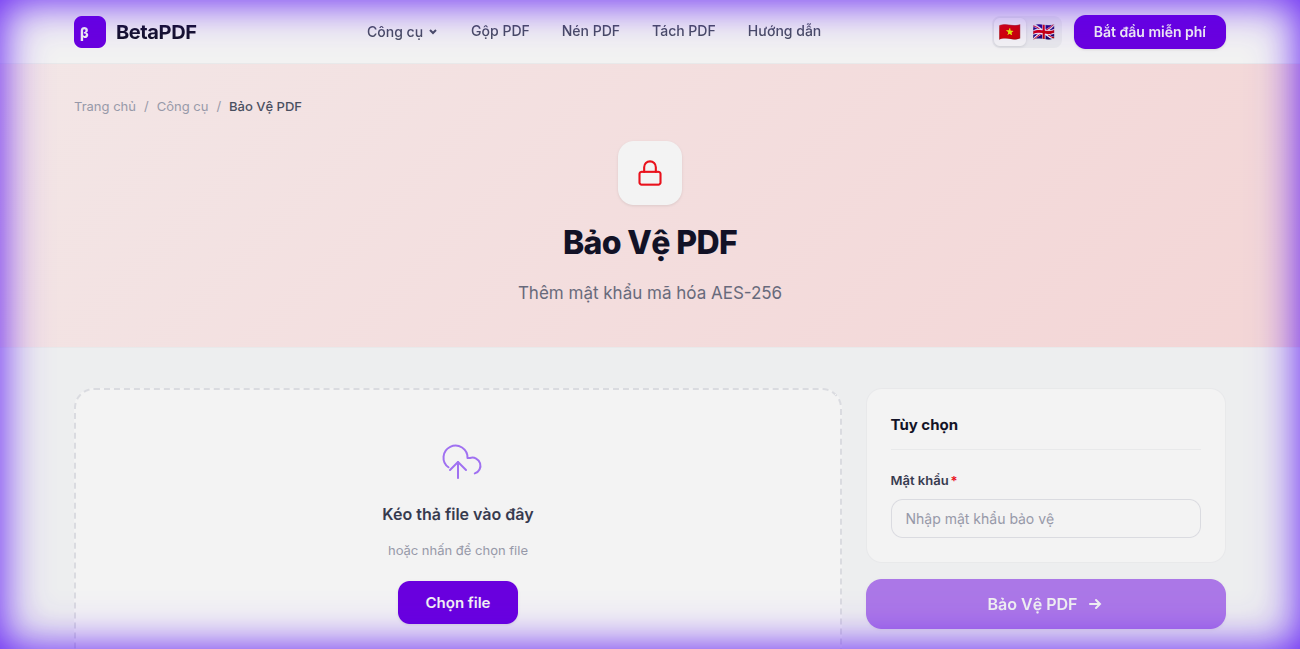
- Upload your PDF: Drag and drop your file onto the dashed upload area labeled "Drag and drop files here", or click the "Choose file" button to browse. Files up to 100MB are supported.
- Enter your password: In the "Options" panel on the right, type a strong password in the "Password" field. Use at least 8 characters mixing uppercase, lowercase, numbers, and special characters.
- Click "Protect PDF →": Hit the purple action button. BetaPDF applies AES-256 encryption — the same standard used by governments and banks.
- Download the protected file: Your encrypted PDF is ready to download. The original file is never stored on our servers.
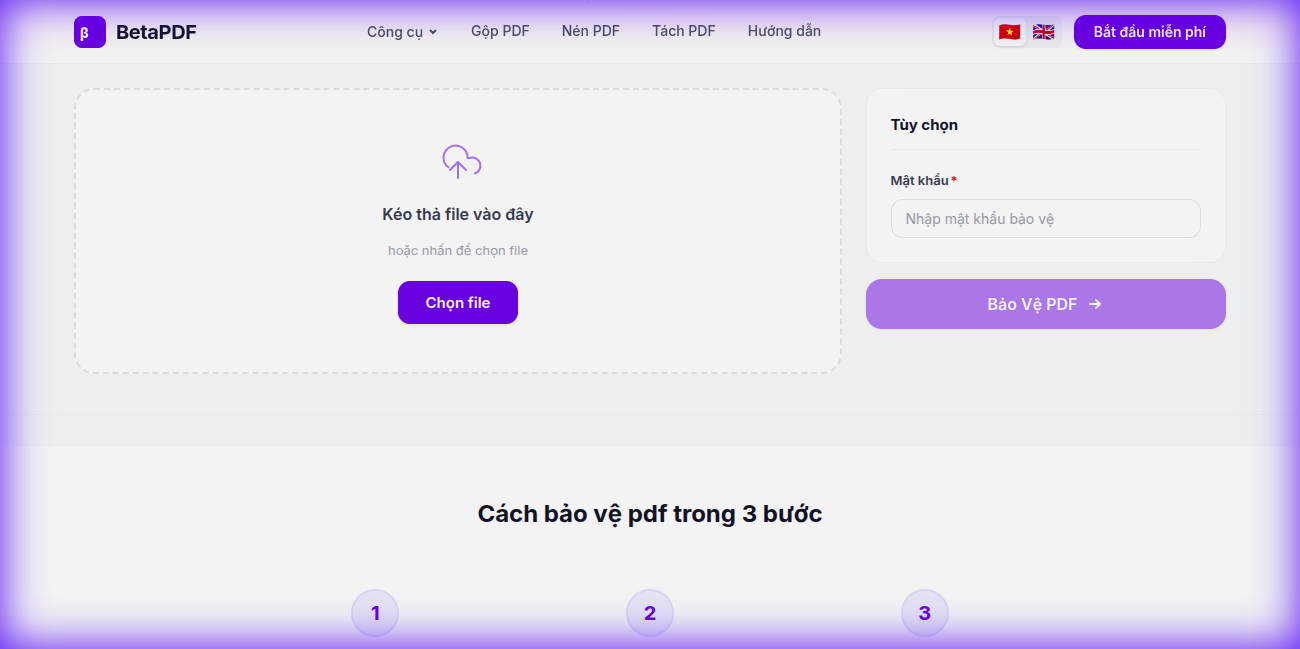
The entire process takes seconds and works on any device — desktop, tablet, or phone.
PDF Security Tips
Follow these best practices to maximize the security of your protected PDFs:
- Use strong passwords: At least 8 characters with a mix of uppercase, lowercase, numbers, and special characters (e.g.,
M@rketing#2026!) - Never reuse passwords: Each protected PDF should have a unique password — don't use your email or bank passwords
- Use a password manager: Tools like 1Password, Bitwarden, or KeePass help you store and retrieve complex passwords securely
- Understand the two types of PDF passwords:
- User password (Open password) — required to open/view the document
- Owner password (Permissions password) — controls what actions are allowed (printing, copying, editing) even after opening
- Share passwords separately: Never send the password in the same email as the PDF. Use a different channel (SMS, messaging app, phone call)
Desktop Alternatives for PDF Protection
If you need offline protection or handle highly sensitive government documents, consider these desktop options:
- Adobe Acrobat Pro — Full control over user/owner passwords, permissions, and certificate-based encryption. Expensive ($19.99/month) but the industry standard.
- LibreOffice Draw — Free and open-source. Open PDF → File → Properties → Security → Set password. Limited compared to Adobe but free.
- macOS Preview — File → Export as PDF → check "Encrypt". Simple but only supports user password (open password), no permission controls.
- Microsoft Word — Open PDF in Word → File → Info → Protect Document → Encrypt with Password. May alter PDF layout during conversion.
For most use cases, BetaPDF's online tool is faster and free — no installation, no subscription. Desktop tools are better only when you need offline access or advanced certificate encryption.
Common Issues and Solutions
Here are the most common problems users face when protecting PDFs:
- "I forgot my password" — Unfortunately, AES-256 encryption is designed to be unbreakable. If you lose the password, the file cannot be recovered. Always store passwords in a password manager.
- "Owner password vs User password — what's the difference?" — The user password locks the file so nobody can open it without the password. The owner password lets people open the file but restricts them from printing, copying, or editing. BetaPDF sets the user password (open password) for maximum security.
- "The recipient says the file is corrupted" — This usually means the download was interrupted. Re-download the protected file and try sending again. Also ensure the recipient's PDF reader supports AES-256 (most modern readers do).
- "Can someone crack the password?" — With AES-256 and a strong password (12+ characters), brute-force attacks would take billions of years. Weak passwords (e.g., "1234") can be guessed quickly.
Frequently Asked Questions
Is password protection free?
Completely free. BetaPDF doesn't charge for any of its tools, including PDF encryption with AES-256.
What if I forget the password?
BetaPDF doesn't store your passwords. If you forget it, the file cannot be recovered — AES-256 encryption is designed to be unbreakable. Always save passwords in a secure password manager.
What's the difference between Owner and User passwords?
A User password (or Open password) prevents anyone from opening the PDF without the password. An Owner password (or Permissions password) allows opening but restricts actions like printing, copying, or editing. BetaPDF sets the User password for maximum protection.
Can I restrict printing or copying without locking the file?
That requires an Owner password (permissions-only). BetaPDF currently sets a User password that locks the entire file. For permissions-only protection, you'll need Adobe Acrobat Pro or similar desktop tools.
Is my file safe during upload?
Yes. Files are encrypted in transit (HTTPS/TLS), processed on our servers, and automatically deleted after processing. We never store or read your documents.
Can password-protected PDFs be opened on phones?
Yes. All modern PDF readers on iOS and Android (including Apple Books, Google Drive, Adobe Reader) support AES-256 encrypted PDFs. Just enter the password when prompted.
Conclusion
Protecting your PDFs with a password is one of the simplest yet most effective ways to secure sensitive information. Whether you're sharing contracts, financial data, or personal documents, AES-256 encryption ensures only authorized users can access the content.
BetaPDF makes the process fast, free, and accessible from any device. For maximum security, combine a strong password with smart sharing practices — and always keep a backup of your passwords in a password manager.
Need to remove protection later? Use BetaPDF's Unlock PDF tool to remove the password (you'll need the original password to do so).