When Do You Need to Reorder PDF Pages?
Reordering PDF pages is a common task that saves time and improves document organization. Here are typical scenarios:
- Pages are in wrong order after scanning multiple documents or merging files from different sources
- Move table of contents or appendix to the correct position in the document
- Reorganize reports and presentations — rearrange sections in a new logical sequence without re-creating the document
- Fix scanning order — when you scanned pages in the wrong sequence
- Customize document order for specific audiences — move the most relevant sections to the front
How to Reorder PDF Pages with BetaPDF
Follow these steps to rearrange your PDF pages for free:
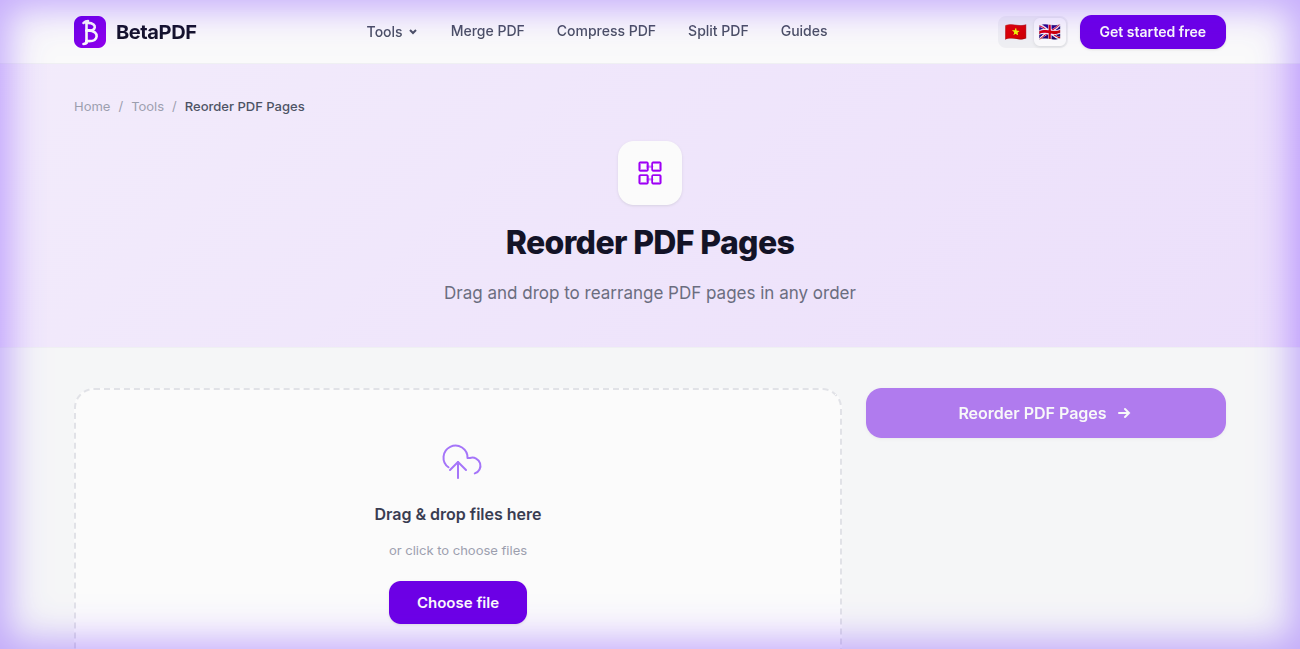
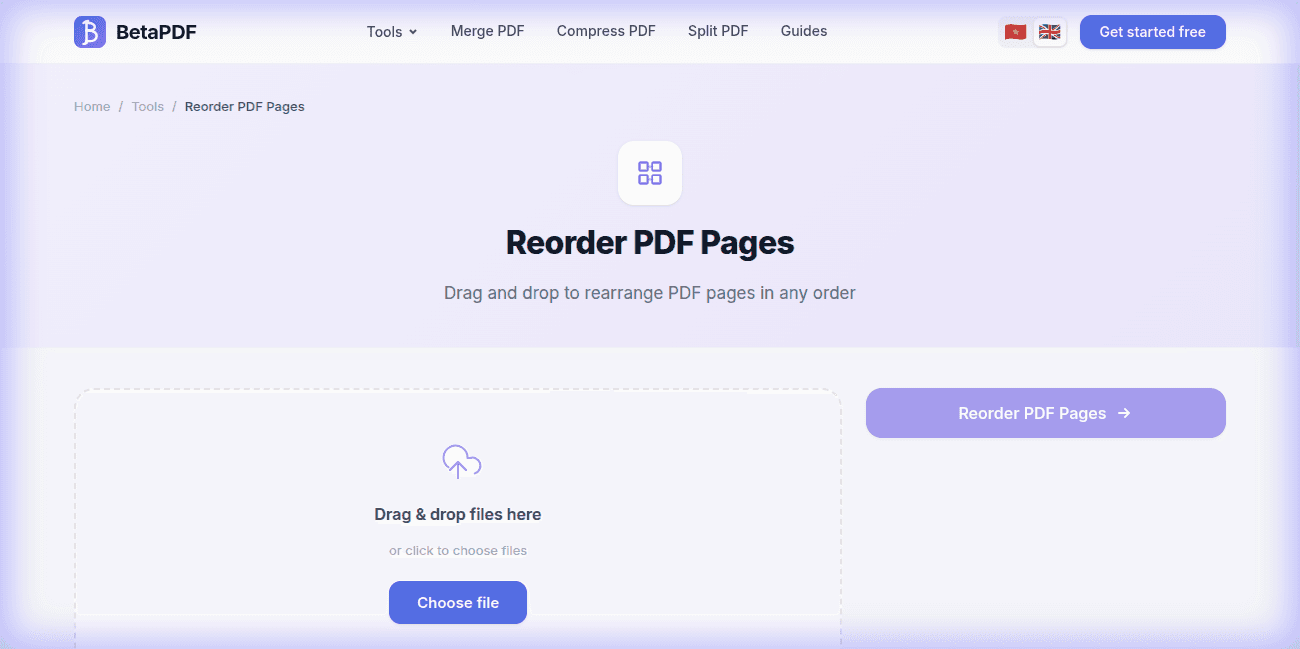
- Upload your PDF: Drag and drop your file onto the upload area, or click "Choose file" to browse. Files up to 100MB are supported.
- View page thumbnails: BetaPDF displays visual thumbnail previews of each page so you can easily identify content.
- Drag and drop to reorder: Simply click and drag any page thumbnail to its new position. The page order updates in real-time as you drag.
- Click "Reorder PDF →": Hit the purple action button to apply the new page order.
- Download the result: Your reordered PDF is ready to download. The original file is never modified.
The intuitive drag-and-drop interface works on desktop and tablet devices. No software installation needed.
Tips for Reordering PDF Pages
- Use thumbnails to navigate: BetaPDF shows small previews of each page, making it easy to identify pages by their visual content rather than page numbers alone.
- Plan your order first: Before dragging, decide on the final order you want. It's easier to plan than to repeatedly move pages.
- Combine with delete: After reordering, you might want to remove unnecessary pages. Use Delete Pages tool next.
- Keep the original: Always save a copy of the original file before reordering, in case you need to restore the original sequence.
- Check results: After downloading, open the reordered PDF and scroll through to verify all pages are in the correct position.
Alternative Ways to Reorder PDF Pages (Comparison)
Here's a detailed comparison of all methods for reordering PDF pages:
1. Adobe Acrobat Pro ($19.99/month)
Tools → Organize Pages → drag page thumbnails to new positions. Pros: Visual drag-and-drop with undo, combine reorder with delete/rotate in one view. Cons: Expensive subscription, heavy software. Not worth it if you only need to reorder pages occasionally.
2. macOS Preview (Free — Mac Only)
Open PDF → View → Thumbnails → drag pages to reorder in the sidebar. Pros: Built-in, free, intuitive. Cons: Mac-only, can be tricky with PDFs that have hundreds of pages, no batch processing.
3. Foxit PDF Editor ($7.99/month)
Page Management panel with drag-and-drop reordering. Pros: Cheaper than Adobe, lighter software. Cons: Still a paid subscription, free version only has basic viewing.
4. qpdf (Free — Command Line)
qpdf input.pdf --pages . 3,1,2,4-end -- output.pdf moves page 3 to the front. Pros: Free, scriptable, precise. Cons: Requires command-line knowledge, no visual preview of pages.
5. Google Docs (Not Supported)
Google Docs cannot reorder PDF pages. You'll need a dedicated PDF tool.
Bottom line: BetaPDF provides the most intuitive drag-and-drop experience with page thumbnails — completely free, no limits, works on any device with a modern browser.
Common Issues When Reordering Pages & How to Fix Them
Here are the most common problems when reordering PDF pages and how to solve them:
1. Bookmarks Point to Wrong Pages
Cause: Reordering pages shifts page numbers, but bookmarks still reference the original page numbers. Fix: After reordering, review all bookmarks and update them to point to the correct new page numbers. Most PDF editors can help you update bookmarks.
2. Table of Contents Has Wrong Page Numbers
Cause: If your PDF has a printed table of contents (e.g., "Chapter 3 — Page 15"), reordering pages won't update those printed numbers. Fix: Consider re-creating the table of contents page, or use Delete Pages to remove the old TOC and add an updated one.
3. Cross-References Are Broken
Cause: Academic or technical documents with "see page X" references will have incorrect page numbers after reordering. Fix: Review the document for all cross-references and update them manually. This is unavoidable with any reordering tool.
4. Large PDFs Slow to Preview
Cause: PDFs with many high-resolution pages (e.g., photo portfolios, image-heavy reports) may take longer to generate thumbnail previews. Fix: Be patient — the thumbnails will load. The actual reordering process is fast regardless of file size. If the file is too large, consider compressing it first.
5. Page Content Looks Different After Reordering
Cause: This should never happen — reordering only moves pages without modifying content. Fix: If content appears different, the issue is likely with your PDF viewer. Try opening in a different viewer (Adobe Reader, Firefox) to confirm.
Frequently Asked Questions
Is reordering PDF pages free?
Completely free. No registration needed, no file limits, no watermarks. Use immediately in your browser on any device.
Can I reorder a PDF with many pages?
Yes. BetaPDF supports PDFs with hundreds of pages and provides thumbnail previews for easy identification. The drag-and-drop interface works smoothly even with large documents.
Does reordering affect page content?
No. Reordering only changes the sequence of pages. The text, images, annotations, form fields, and all other content on each page remains completely unchanged.
Can I undo the reordering?
The original file is never modified. If you need the original order, simply use the original file you uploaded. BetaPDF creates a new file with the reordered pages.
Can I reverse the page order entirely?
You can manually drag pages to reverse the order using BetaPDF's interface. For very large documents, this can be done more efficiently using a command-line tool like qpdf.
Does reordering work with scanned PDFs?
Yes. Reordering works with any PDF regardless of how it was created — scanned documents, digitally created files, image-based PDFs, or text-based PDFs.
Conclusion
Reordering PDF pages doesn't have to be complicated. Whether you're fixing scanning errors, reorganizing a report, or customizing a document for a specific audience, BetaPDF's drag-and-drop interface makes it effortless.
Upload your PDF, drag pages to their new positions, and download — all in seconds, completely free, no registration needed.
Ready to rearrange your PDF? Try BetaPDF Reorder Pages now →