When Do You Need to Rotate PDF Pages?
Rotating PDF pages is a common task that nearly everyone encounters at some point. Here are the most frequent scenarios:
- Scanned documents are tilted or upside down — scanners often produce pages in the wrong orientation, especially when mixing landscape and portrait originals
- Some pages are landscape and need to be portrait for consistent reading, or vice versa for wide tables and charts
- Fix orientation errors from scanners, phone cameras, or PDF creation software that auto-detected the wrong direction
- Prepare documents for printing — ensure all pages face the correct direction before sending to a printer
- Mobile-scanned documents from phone cameras often have random orientations that need correction
How to Rotate PDF with BetaPDF
Follow these simple steps to rotate your PDF pages for free:
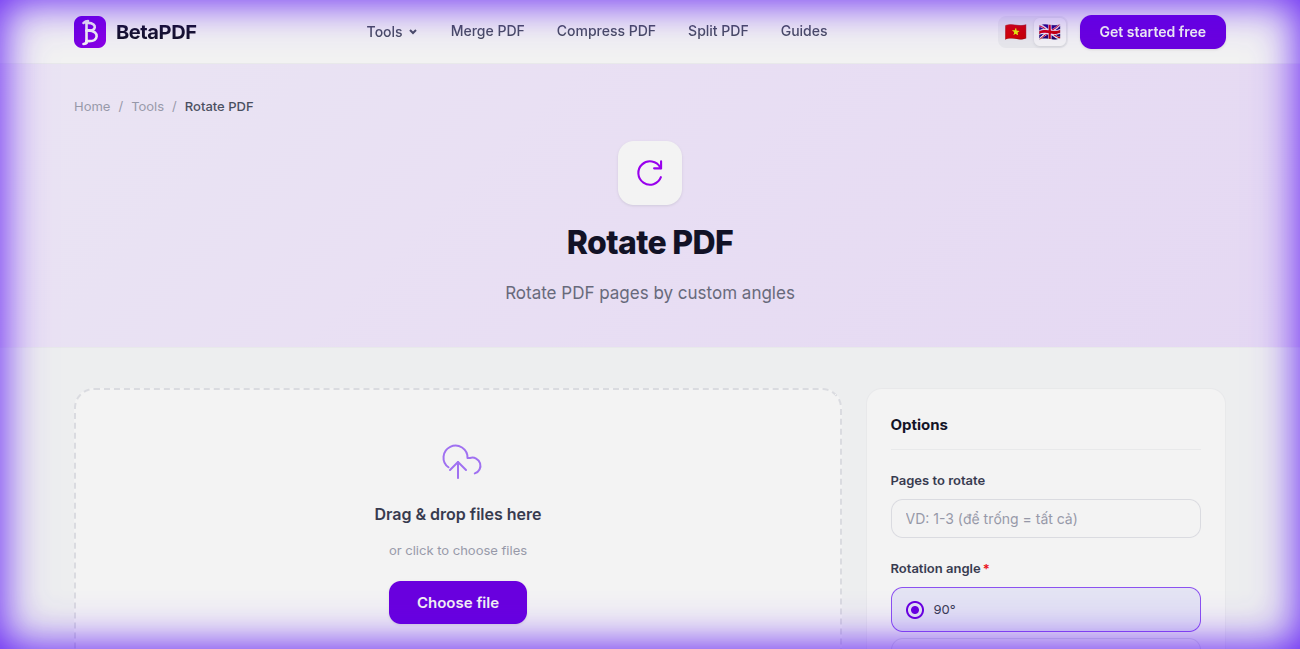
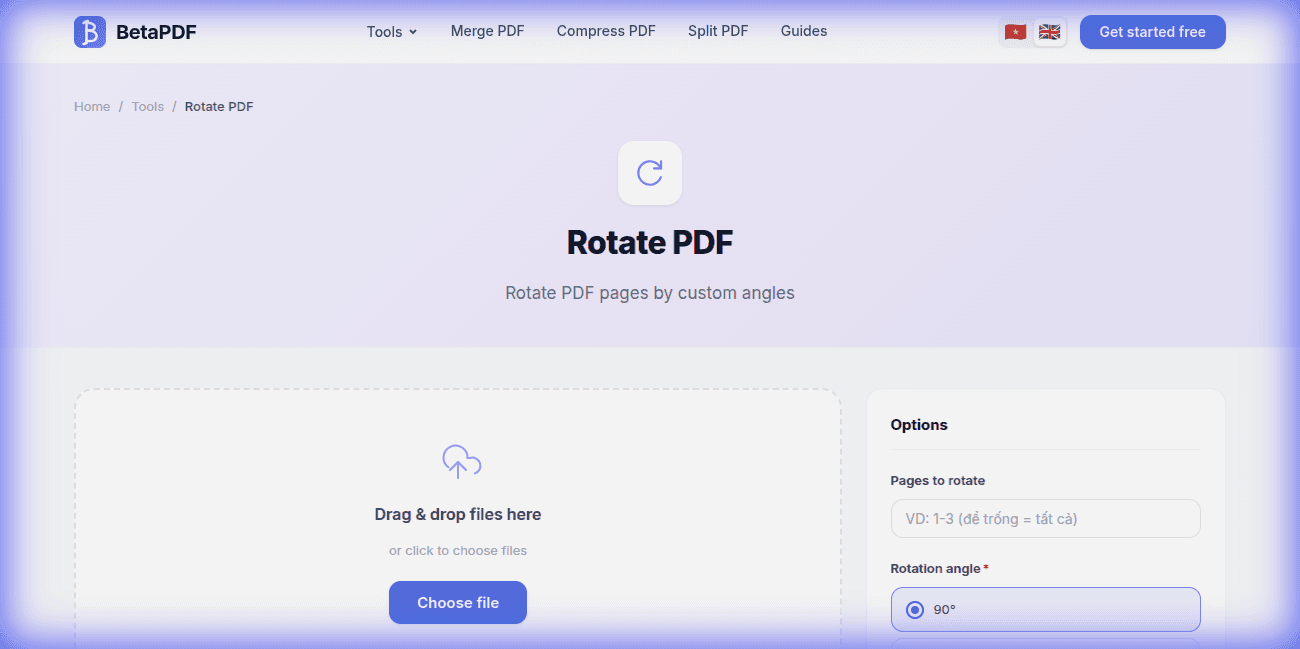
- Upload your PDF: Drag and drop your file onto the dashed upload area, or click the "Choose file" button to browse. Files up to 100MB are supported.
- Choose rotation angle: In the "Options" panel, select your desired rotation:
- 90° clockwise — rotate right
- 90° counterclockwise — rotate left
- 180° — flip upside down
- Select pages: Choose to rotate all pages or specify individual page numbers.
- Click "Rotate PDF →": Hit the purple action button. Processing takes just a few seconds.
- Download the result: Your rotated PDF is ready to download. The original file is never modified.
The entire process works in the cloud — no software installation needed. Works on any device.
PDF Rotation Tips
- Preview first: Always preview to confirm correct rotation before saving. A wrong 90° rotation is easy to fix, but 180° can be confusing.
- Selective rotation: If only a few pages are tilted, rotate them individually instead of all pages to avoid messing up correctly-oriented pages.
- Combine with crop: After rotating, trim excess margins with BetaPDF's Crop PDF tool for a cleaner result.
- Batch processing: If you have multiple PDFs to rotate, process them one at a time — each takes only seconds.
- Check print layout: After rotating, verify the document looks correct in print preview before printing.
Alternative Ways to Rotate PDFs (Comparison)
Here's a detailed comparison of all methods for rotating PDF pages:
1. Adobe Acrobat Pro (Paid — $19.99/month)
Adobe offers the most complete PDF editing suite. To rotate: Tools → Organize Pages → select pages → click rotate button. Pros: Page-by-page rotation with live preview, batch processing. Cons: Expensive subscription, heavy software (~500MB), overkill for simple rotation.
2. macOS Preview (Free — Mac Only)
Open PDF in Preview → View → Thumbnails → select pages → Tools → Rotate Left/Right. Pros: Built-in, no installation. Cons: Mac-only, no batch processing, can't specify exact degrees for multiple pages at once.
3. Microsoft Edge Browser (Free — Limited)
Open any PDF in Edge → click the rotate button in the top toolbar. Pros: Already installed on Windows. Cons: Rotates all pages at once (no selective rotation), rotation is only temporary — you must Print to PDF to save it.
4. Google Chrome (No Rotation)
Chrome's built-in PDF viewer has no rotation feature at all. You'll need an external tool like BetaPDF.
5. Command-Line: qpdf (Free — Technical)
qpdf --rotate=+90:1-3 input.pdf output.pdf rotates pages 1-3 by 90°. Pros: Scriptable, precise. Cons: Requires installation and command-line knowledge.
Bottom line: For fast, free rotation with selective page control and no installation — BetaPDF is the best choice.
Common Issues When Rotating PDFs & How to Fix Them
Here are the most common problems when rotating PDFs and step-by-step solutions:
1. Text Appears Sideways or Upside Down
Cause: Wrong rotation direction selected (clockwise instead of counterclockwise, or vice versa). Fix: If 90° clockwise made it worse, apply 90° counterclockwise instead (or rotate 270° clockwise, which is equivalent). Always preview after rotation before downloading.
2. Only Some Pages Need Rotation
Cause: Selecting "all pages" when only a few are misoriented — this breaks the pages that were already correct. Fix: Use BetaPDF's selective page rotation feature. Enter specific page numbers (e.g., "3, 7, 12") to rotate only those pages, leaving the rest untouched.
3. File Size Increased After Rotation
Cause: Rare issue with some PDF structures. BetaPDF uses lossless rotation that shouldn't change file size. Fix: If the file grew, use BetaPDF Compress PDF to optimize it afterward.
4. Rotation "Doesn't Stick" — Reverts When Reopened
Cause: Some PDF viewers (like Chrome) show a temporary visual rotation that isn't actually saved to the file. Fix: BetaPDF permanently changes the page orientation in the PDF file itself, so your rotation is always saved.
5. Scanned PDF Pages Are Crooked (Slightly Tilted)
Cause: Scanner misalignment. PDF rotation only works in 90° increments, so it can't fix a 2° tilt. Fix: For slight tilts, you need OCR or image editing software to deskew before converting to PDF.
Frequently Asked Questions
Does rotating change PDF content?
No. Rotation only changes the display orientation. All text, images, hyperlinks, form fields, and annotations remain 100% intact.
Can I rotate individual pages?
Yes. BetaPDF allows you to rotate specific pages by entering page numbers (e.g., "3, 7, 12") or rotate all pages at once. This is especially useful when only a few scanned pages are misoriented.
What rotation angles are supported?
BetaPDF supports 90° clockwise, 90° counterclockwise, and 180° rotation. For a 270° rotation, simply rotate 90° in the opposite direction.
Is the rotation permanent?
Yes. BetaPDF permanently modifies the page orientation in the PDF file itself, unlike some viewers (Chrome, Edge) that only apply a temporary visual rotation without saving it.
Can I rotate a password-protected PDF?
If the PDF has editing restrictions, you'll need to unlock it first. Use BetaPDF's Unlock PDF tool to remove the password, then rotate the pages.
Does rotation work on mobile devices?
Yes. BetaPDF works on any mobile browser (Chrome, Safari on iOS/Android). Upload, rotate, and download — all without installing an app.
Conclusion
Rotating PDF pages is one of the most common PDF editing tasks, whether you're fixing scanned documents, preparing files for printing, or correcting orientation errors.
BetaPDF makes it effortless: upload, choose the angle, and download — all in seconds, completely free, with no registration required. You can rotate individual pages or all pages at once.
Ready to fix your PDF orientation? Try BetaPDF Rotate PDF now →