What is PDF Splitting and When Do You Need It?
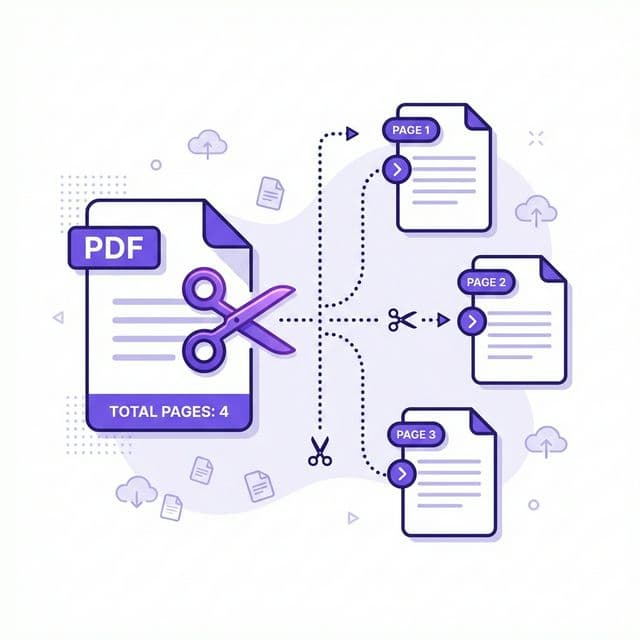
PDF splitting is the process of dividing a large PDF into smaller, separate files. It's one of the most common document tasks in professional and academic environments:
- Extract specific pages — pull out the 3 pages you need from a 200-page report, like extracting a contract signature page or a specific chapter.
- Work around email attachment limits — Gmail limits attachments to 25MB, Outlook to 20MB. Split large PDFs into smaller parts to send via email.
- Separate chapters or sections — break a book or training manual into individual chapters for distribution.
- Remove confidential pages — extract only the non-sensitive pages to share externally.
- Archive specific content — save only the relevant pages from receipts, invoices, or bank statements.
BetaPDF lets you split PDFs for free online — no software installation, no registration, no watermarks.
How to Split PDF with BetaPDF
Follow these steps to split your PDF for free:
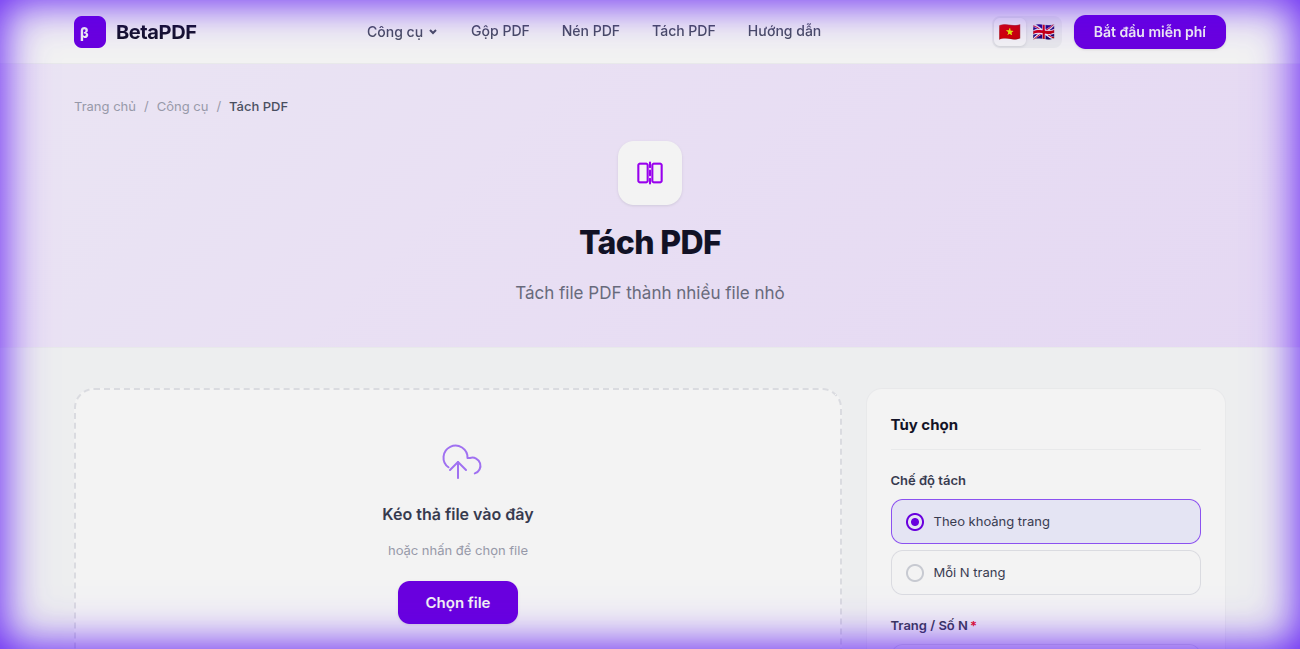
- Upload your PDF: Drag and drop your file onto the dashed upload area, or click the "Choose file" button to browse. Files up to 100MB are supported.
- Choose split mode: In the "Options" sidebar, pick one of two modes:
- "By page range" — Enter specific page numbers or ranges like "1-5, 8, 12-15"
- "Every N pages" — Split the entire document into chunks of N pages each
- Click "Split PDF →": Hit the purple action button. Processing takes just a few seconds.
- Download results: Your split PDF files are downloaded as a ZIP archive. The original file is never modified.
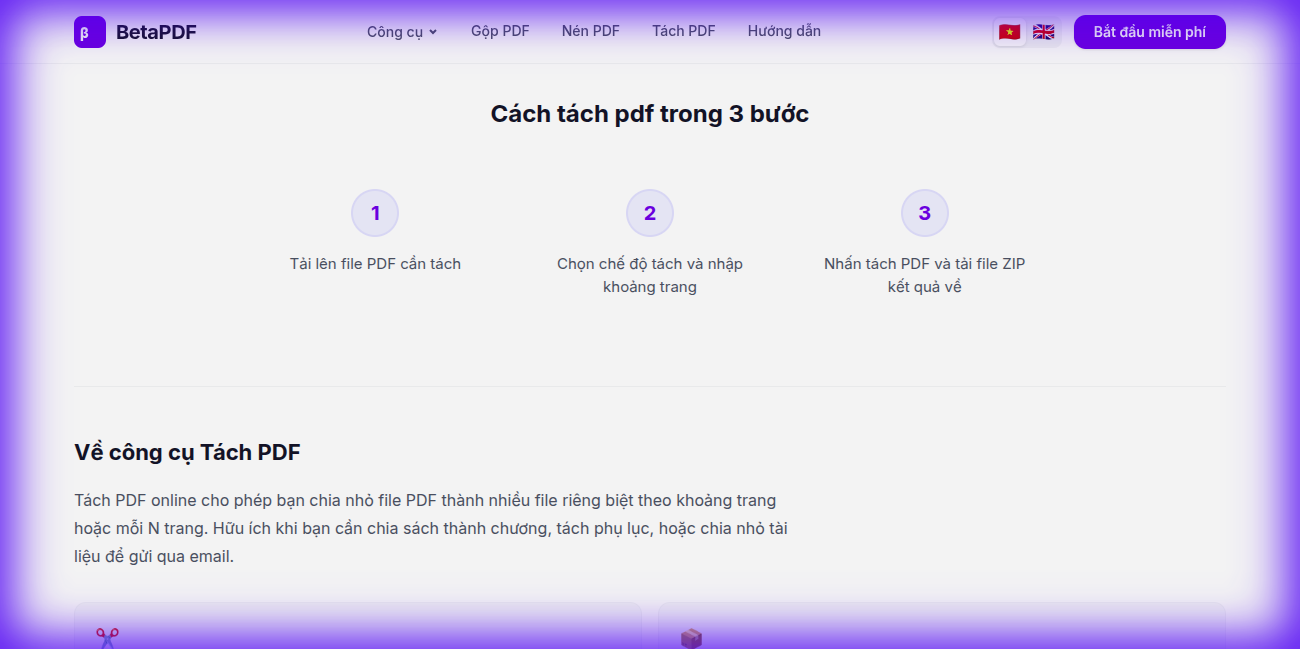
The entire process runs in the cloud — no software needed. Works on any device.
Tips for Effective PDF Splitting
- Use page ranges: Enter "1-5, 8, 10-15" to extract exactly the pages you need in one pass.
- Preview before splitting: Always check the thumbnail previews to avoid selecting the wrong pages.
- Split + Merge workflow: Extract pages from multiple PDFs, then use BetaPDF's Merge PDF tool to combine them into a new custom document.
- Split for email: If your PDF is 40MB, split it into two ~20MB files to meet email attachment limits.
- Keep the original: BetaPDF never modifies your original file. You can always re-split if needed.
Other Ways to Split PDF
Besides BetaPDF, here are alternative methods:
- Adobe Acrobat Pro — Tools → Organize Pages → Split. Full-featured but requires a paid subscription (~$20/month).
- Chrome "Print to PDF" — Open PDF in Chrome → Print → change destination to "Save as PDF" → enter specific page ranges. Free but limited — can't select non-contiguous pages easily.
- macOS Preview — Open PDF → select pages in sidebar → drag to Desktop to create new file. Free on Mac only.
- Smallpdf / iLovePDF — Online tools with daily limits on free tier (1-2 operations/day).
- PDF-XChange Editor (Windows) — Free viewer with basic split capability, but the interface is complex.
BetaPDF offers unlimited free splitting with page previews, range selection, and no account required.
Common Issues When Splitting PDFs
- "Wrong pages selected" — Always preview before splitting. BetaPDF shows thumbnail previews of every page so you can verify your selection.
- Password-protected PDFs — You'll need to unlock the PDF first before splitting. BetaPDF has a dedicated Unlock PDF tool.
- Bookmarks/links broken after split — Internal cross-references may not work if the linked page is in a different split file. Consider keeping related pages together.
- Large files take time — PDFs over 50MB may take a few extra seconds to process. The cloud handles the heavy lifting.
Frequently Asked Questions
Is PDF splitting free?
Yes, completely free with no usage limits and no registration required. You can split as many PDFs as you want, as many times as you need.
Can I split a password-protected PDF?
You'll need to unlock the file first. Use BetaPDF's Unlock PDF tool to remove the password, then split the unlocked file.
Can I extract non-contiguous pages (e.g., pages 1, 5, 12)?
Yes! Enter specific page numbers or ranges separated by commas, like "1, 5, 12" or "1-3, 7-9, 15". BetaPDF handles any combination.
Will splitting lose bookmarks or hyperlinks?
Bookmarks and internal links that point to pages within the same split file are preserved. Links to pages in a different split file may no longer work since those pages are in a separate document.
Can I split a PDF and then merge the parts differently?
Absolutely! This is a common workflow. Split your PDF to extract the pages you need, then use BetaPDF's Merge PDF tool to combine them in any order you want.
What's the maximum file size for splitting?
BetaPDF supports files up to 100MB. For larger files, consider compressing the PDF first using BetaPDF's Compress PDF tool.
Conclusion
PDF splitting is essential for managing large documents efficiently. Whether you need to extract specific pages, split for email, or separate chapters, BetaPDF makes it quick and easy.
Upload your PDF, select the pages, and download — all in seconds, completely free. No registration, no watermarks, no limits.
Ready to split? Try BetaPDF Split PDF now →