Why Convert Word to PDF?
Converting Word to PDF is one of the most essential document tasks. Here's why PDF is the preferred format for sharing:
- Preserve formatting: PDF displays identically on all devices — no font substitution, no layout shifts, no broken tables. What you see is what everyone sees.
- Security: PDFs are harder to edit than Word files, making them ideal for contracts, reports, and final documents that shouldn't be altered.
- Smaller file size: PDFs are often 30-50% smaller than the original Word files, especially when containing images.
- Universal compatibility: Every device, phone, tablet, and computer can open PDFs without needing Microsoft Office installed.
- Professional standard: PDFs are the industry standard for submitting resumes, proposals, invoices, and legal documents.
How to Convert Word to PDF with BetaPDF
Follow these steps to convert your Word document to PDF for free:
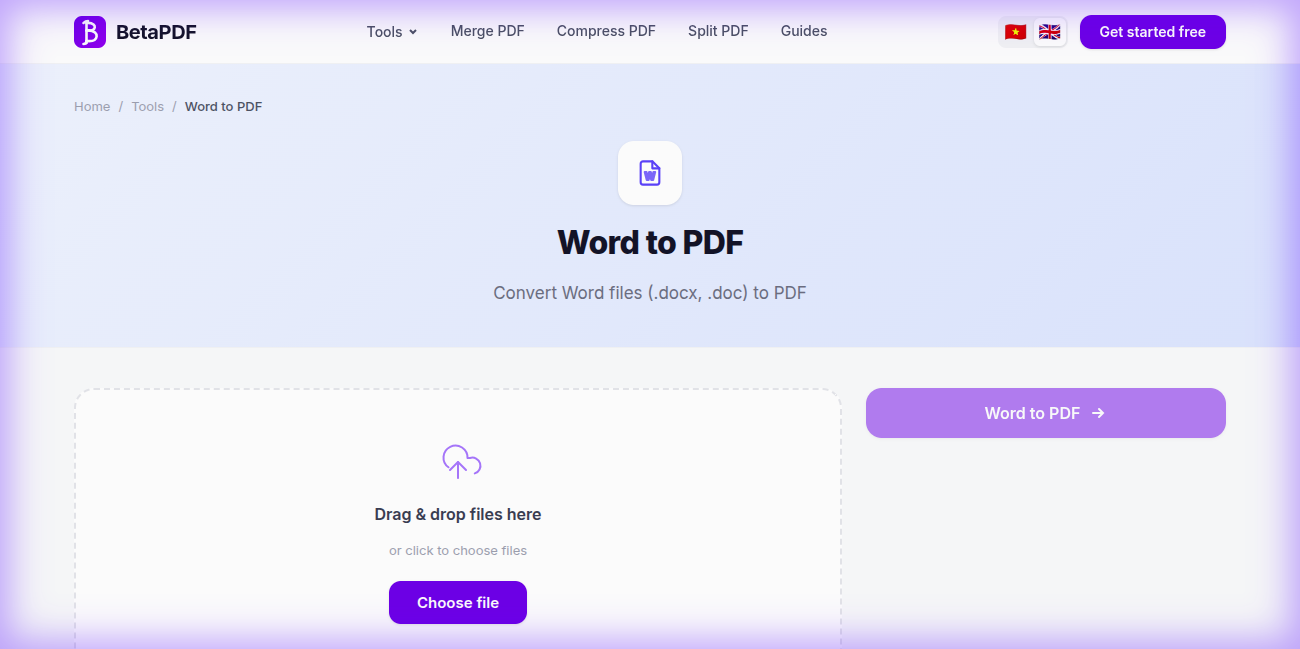
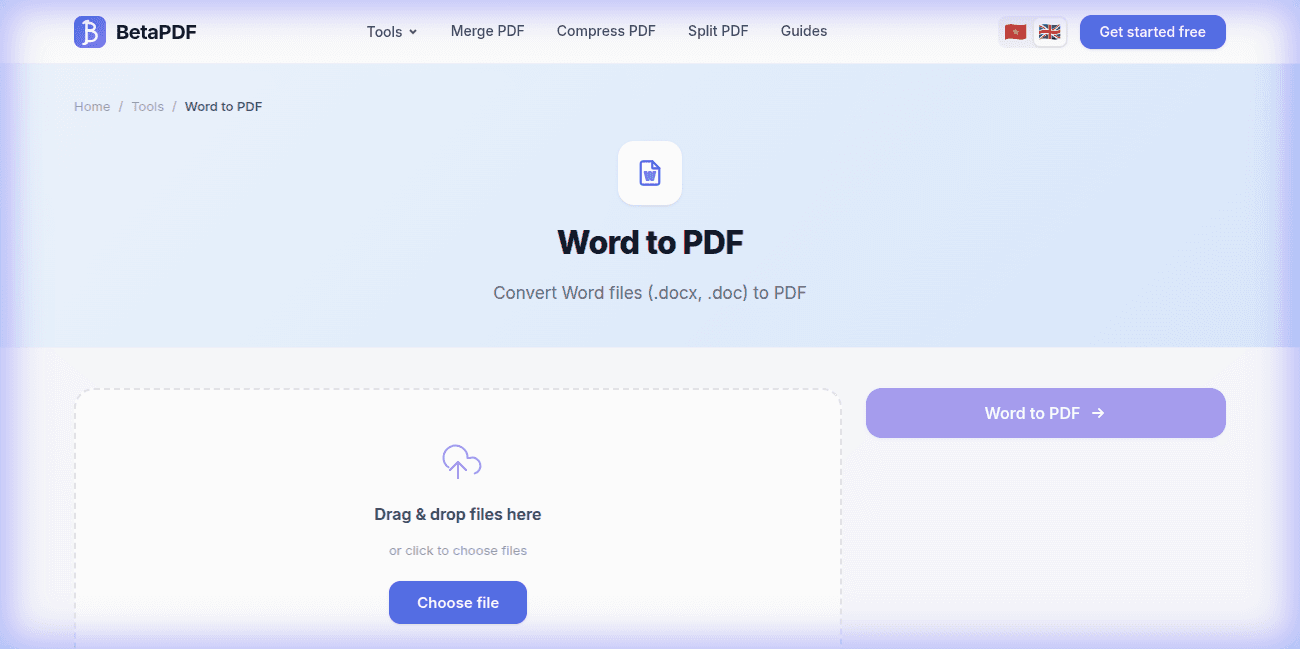
- Upload your Word file: Drag and drop your .docx or .doc file onto the upload area, or click "Choose file" to browse. Files up to 100MB are supported.
- Wait for conversion: BetaPDF automatically converts your document using LibreOffice rendering engine, preserving fonts, tables, images, headers, footers, and page layout.
- Download PDF: Your converted PDF is ready to download in just a few seconds. The original Word file is never stored on our servers.
The conversion runs in the cloud — no Microsoft Office installation needed. Works on any device: Windows, Mac, Linux, phone, or tablet.
Word to PDF Conversion Tips
- Embed fonts: If using special or custom fonts, embed them in Word (File → Options → Save → Embed fonts) before converting to avoid font substitution.
- Check page layout: Ensure your Word document's page size (A4, Letter) matches your intended output before converting.
- Tables and charts: BetaPDF preserves table structure, charts, SmartArt graphics, headers, and footers accurately.
- Hyperlinks: Links in Word documents remain clickable in the converted PDF.
- Images: Embedded images maintain their original quality. For smaller files, use Compress PDF after conversion.
- Track Changes: Accept or reject all Track Changes before converting — otherwise tracked changes appear in the PDF.
Word to PDF Alternatives (Detailed Comparison)
Here's a detailed comparison of all methods for converting Word to PDF:
1. Microsoft Word "Save as PDF" (Free with Office)
File → Save As → select PDF format. Pros: Built-in, perfect formatting since it uses the original rendering engine. Cons: Requires Microsoft Office installed (not available on Chromebooks, Linux, or mobile without the app). Office 365 costs $6.99/month.
2. Google Docs (Free)
Upload Word file to Google Drive → Open in Docs → File → Download → PDF. Pros: Free, works anywhere. Cons: Often breaks complex formatting — tables shift, custom fonts get substituted, headers/footers may disappear. Not reliable for professional documents.
3. Adobe Acrobat Pro ($19.99/month)
The industry standard for PDF creation. Pros: Perfect conversion, batch processing, PDF/A support for archival. Cons: Very expensive subscription, heavy software.
4. LibreOffice (Free Desktop App)
Open-source alternative. File → Export as PDF. Pros: Free, same engine BetaPDF uses internally. Cons: Requires download and installation (~300MB). Occasional minor formatting differences from Word.
5. iLovePDF / Smallpdf (Online — Limited Free)
Upload and convert online. Pros: No installation. Cons: Free tier limits to 1-2 files/day, some add watermarks, require sign-up.
Bottom line: BetaPDF offers unlimited free conversion with the same LibreOffice engine used by enterprises — no installation, no limits, no registration.
Common Word to PDF Issues & How to Fix Them
Here are the most common problems when converting Word to PDF and how to solve them:
1. Fonts Look Different in the PDF
Cause: The original font isn't available on the conversion server, so a substitute font is used. Fix: In Word, go to File → Options → Save → check "Embed fonts in the file". This ensures your custom fonts travel with the document.
2. Page Breaks Shifted or Extra Pages Added
Cause: Complex documents with auto-calculated page breaks may reflow slightly with a different rendering engine. Fix: Use manual page breaks (Ctrl+Enter) for critical breaks. Review the PDF and adjust margins if needed.
3. Images Missing or Low Quality
Cause: Images are linked (referenced from an external file) rather than embedded in the Word document. Fix: Right-click each image → check "Link to File" is NOT checked. Or use File → Info → Edit Links to Files → Break Link to embed all images.
4. Headers and Footers Not Showing
Cause: Usually caused by "Different First Page" or "Different Odd & Even" settings in Word. Fix: Review your header/footer settings in Word (Insert → Header/Footer → Options). BetaPDF preserves all headers/footers as they appear in the document.
5. Track Changes Visible in PDF
Cause: Tracked changes weren't accepted before conversion. Fix: In Word, go to Review → Accept All Changes → resolve all comments before converting.
Frequently Asked Questions
Is Word to PDF conversion free?
Completely free. No file limits, no registration required, no watermarks. Convert as many documents as you need.
Do you support .doc (old Word) files?
Yes. BetaPDF supports both .docx (Word 2007+) and .doc (Word 97-2003) formats. Both are converted with full formatting preservation.
Will my formatting be preserved?
Yes. BetaPDF uses the LibreOffice rendering engine which preserves fonts, tables, charts, SmartArt, images, headers, footers, page numbers, and page layout. For best results, embed custom fonts before converting.
Is my file kept on the server?
No. Files are encrypted during upload (HTTPS/TLS), processed on our servers, and automatically deleted after processing. We never store or read your documents.
Can I batch convert multiple Word files?
Currently BetaPDF converts one file at a time. Each conversion takes just a few seconds, so processing multiple files is quick. Batch conversion is planned for a future update.
What if the resulting PDF is too large?
Use BetaPDF's Compress PDF tool after conversion to reduce file size by 50-80%. This is especially effective for Word files containing many images.
Conclusion
Converting Word to PDF is essential for sharing professional documents. Whether you're submitting a resume, sending an invoice, or archiving reports, PDF ensures your formatting stays perfect on any device.
BetaPDF makes conversion effortless: upload your Word file and download a perfectly formatted PDF in seconds — completely free, no registration, no watermarks.
Ready to convert? Try BetaPDF Word to PDF now →